
How to Convert Multiple AVIF Images to GLB?
1. Download and Install reaConverter
Download reaConverter and install it in seconds. The setup is straightforward — no complex configuration, no extra software required. reaConverter also includes editing tools: resize, crop, rotate, and more.

2. Load your AVIF files
Start reaConverter and add your .avif files. The software processes everything locally, so your files never leave your computer.
Use drag-and-drop, folder browser, or right-click conversion from Explorer.

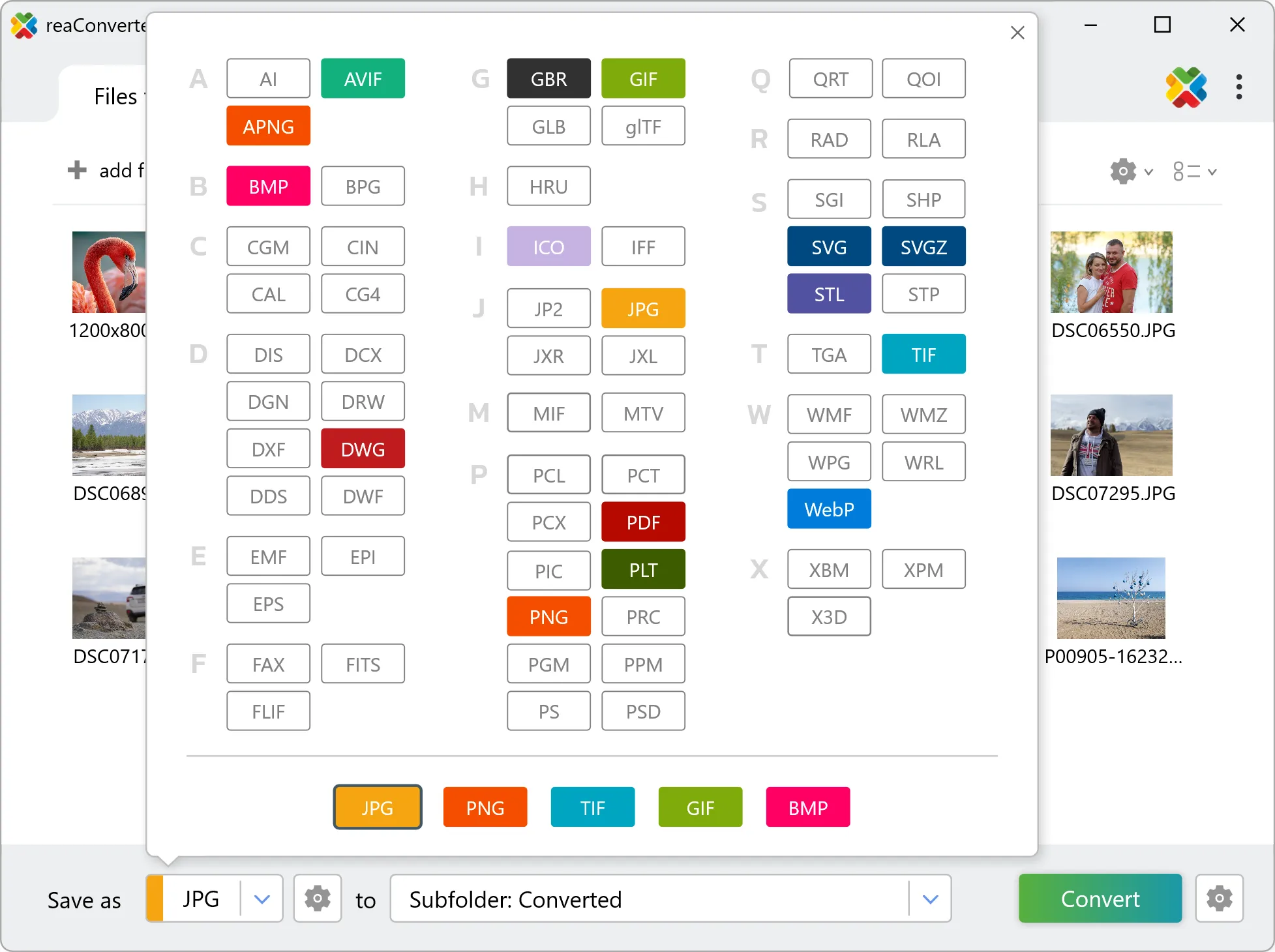
3. Select GLB as output format
Select GLB from 700+ supported output formats. Choose your destination folder and adjust settings to match your needs.
4. Start AVIF to GLB conversion
Click Convert to start the batch. reaConverter processes files quickly and shows you the status of each one.

Once done, reaConverter shows a summary. Click 'Show converted files' to jump straight to your GLB output.
AVIF to GLB: what to expect from the conversion
AVIF is made of pixels and GLB is a geometry format, so the two describe images in fundamentally different ways. Check the result before sending it downstream: what matters is whether the output contains editable geometry or a picture placed inside a GLB container, and that determines whether a CAD or design tool can work with it. One AVIF file can hold several pages or frames, while GLB holds one image each. reaConverter writes a separate output file per page and numbers them, so a single input can produce a whole folder of results.