



How to Convert Multiple .raf Images to .tiff?
1. Download and Install reaConverter
reaConverter installs quickly on any Windows PC. No dependencies, no bloatware — just a clean setup that's ready to use immediately. You can also resize, crop, and adjust images during conversion.

2. Load your RAF files
Open reaConverter and import your .raf files. No file limits, no slowdowns. Add as many as you need.
You can drag-and-drop files, browse to a folder, or add entire directory trees including subfolders.

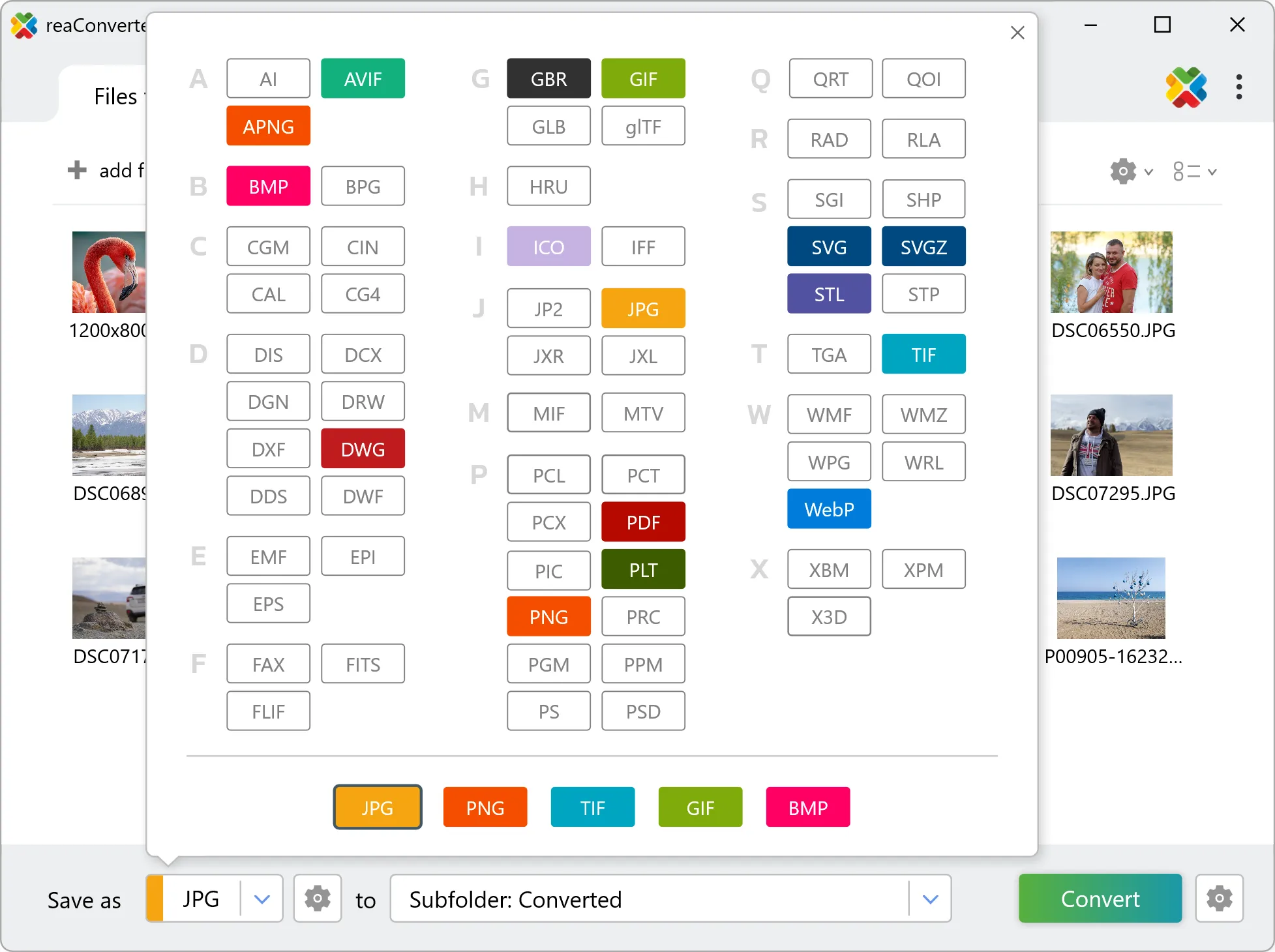
3. Select TIFF as output format
Pick TIFF as the output format. Set the destination folder and optionally configure resolution, quality, or file naming.
4. Start RAF to TIFF conversion
Click the Convert button to start. reaConverter will process all your files with the settings you selected.

When finished, your new .tiff files will be waiting in the destination folder.