


How to Convert Multiple .cr2 Images to .step?
1. Download and Install reaConverter
Install reaConverter for fast CR2 conversion. Quick setup, then you're ready to process entire photo shoots. Need edits? Resize, rotate, or add watermarks during conversion.

2. Load your CR2 files
Load your CR2 RAW photos into reaConverter. Add entire shoots at once and process them in minutes.
Browse for files, drag them in, or add entire folders at once. reaConverter queues everything automatically.

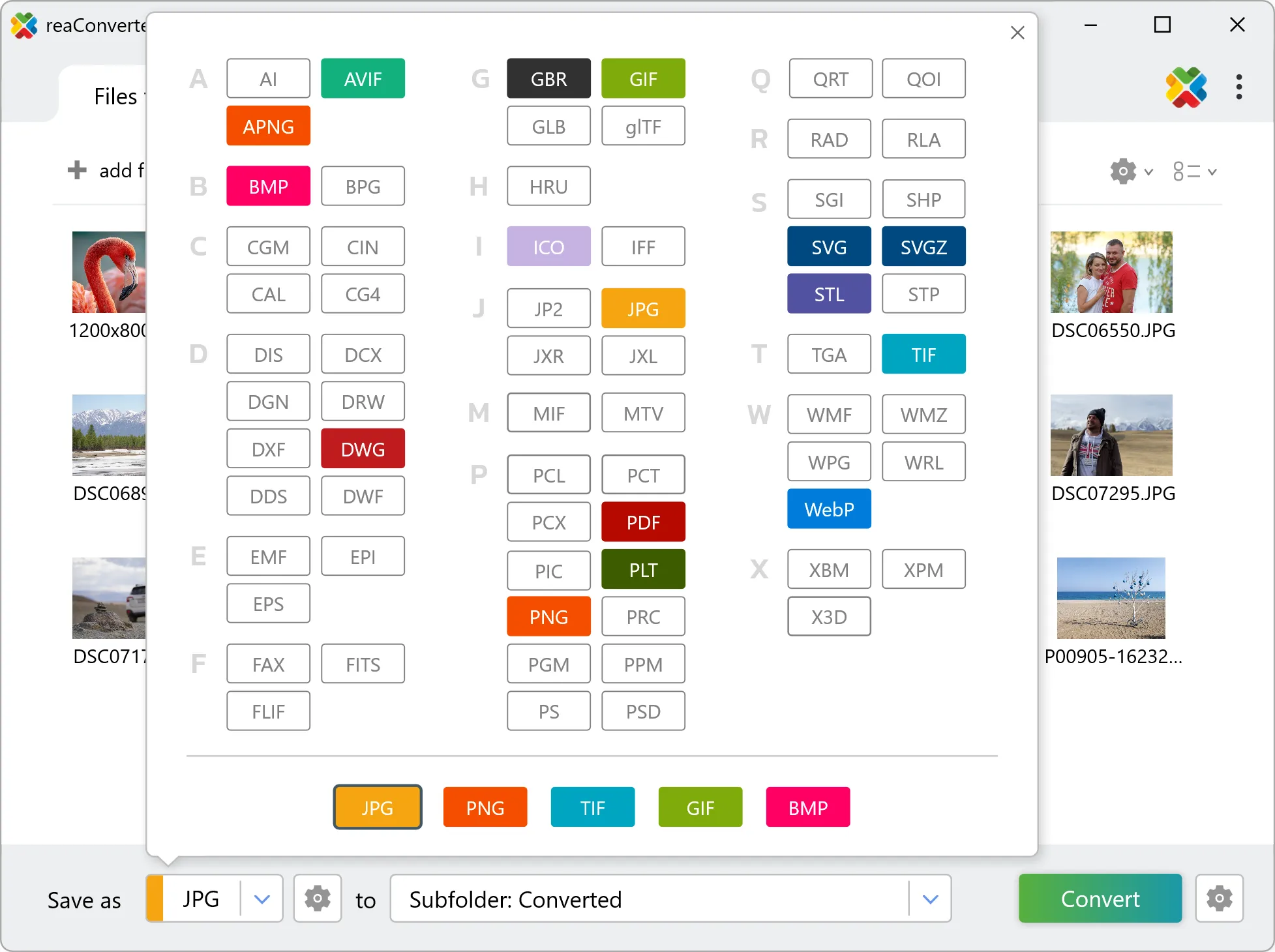
3. Select STEP as output format
Choose STEP as output format. Adjust color profile, quality, and resolution settings to match your photography workflow.
4. Start CR2 to STEP conversion
Start the conversion with one click. reaConverter handles everything and notifies you when it's done.

When the batch finishes, your STEP files are ready in the destination folder you chose earlier.