

How to Convert Multiple HEIF Images to GIF?
1. Download and Install reaConverter Lite
reaConverter Lite is quick to download, easy to install, and ready to launch in seconds. This lightweight, standalone software is highly efficient at handling a wide range of batch image conversions. Plus, it lets you apply essential image editing options — such as resizing, rotating, or adjusting quality — during the conversion process.

2. Load your HEIF files
Add your HEIF files to reaConverter. Whether it's a handful or an entire archive, the batch engine processes them efficiently.
Browse for files, drag them in, or add entire folders at once. reaConverter queues everything automatically.

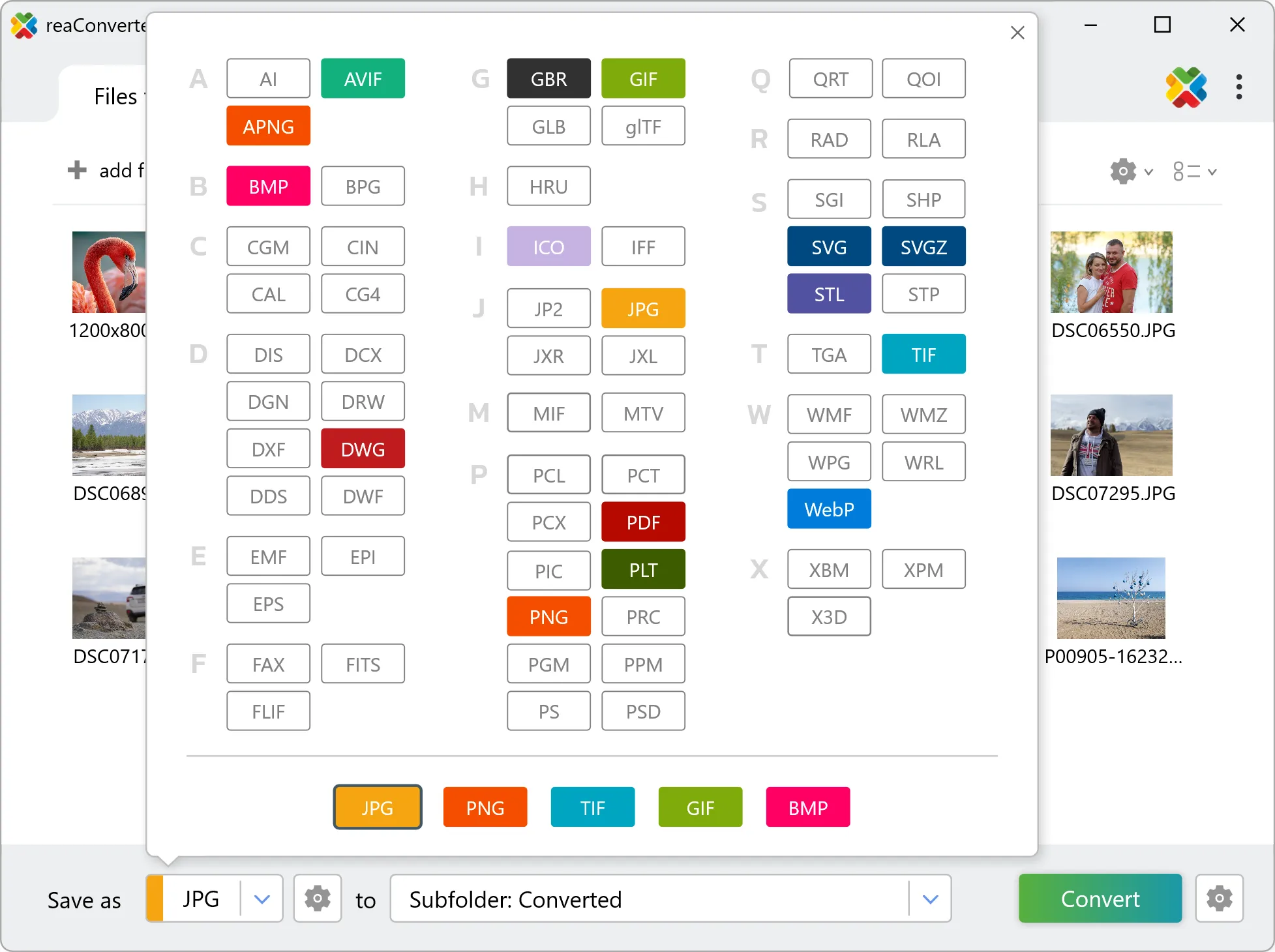
3. Select GIF as output format
Pick GIF as the output format. Set the destination folder and optionally configure resolution, quality, or file naming.
4. Start HEIF to GIF conversion
Start the conversion with one click. reaConverter handles everything and notifies you when it's done.

When the batch finishes, your GIF files are ready in the destination folder you chose earlier.
How HEIF and GIF differ in practice
HEIF carries 10 bits per channel and GIF carries 8, so tonal steps get coarser during conversion. It shows up first in smooth gradients such as skies. If the result will be edited further, move to an 8-bit format only at the very end. GIF stores a limited palette rather than full colour, so the conversion has to reduce the number of distinct colours. Photographic content shows this as banding, while flat graphics and icons usually survive it untouched.