FAQ
ICO to TGA Conversion
What are ICO files?
ICO files contain the images used as icons for files, folders or programs on the Microsoft Windows platform. The icons appear on the desktop, in Windows Explorer or in the Start Menu and help identify each item. ICO images are generally of a small size, are scalable, and they can also serve as website logos or symbols that appear in the web browser next to the URL. The equivalent of ICO files on Mac computers is called ICNS.
What are TGA files?
The TGA (Truevision Graphics Adapter) format, also known as Truevision TGA or TARGA, is a bitmap file containing raster graphics and was initially associated with TARGA and VISTA boards. TGA files can be used on DOS, Windows and Mac OS X platforms for storing and transferring deep-pixel images. They support a color range of up to 24 bits and an 8-bit alpha channel. TGA files are associated with graphic adapters that can capture NTSC and/or PAL video images signals, and they are particularly popular in the domain of still-video editing.
Can reaConverter convert ICO to TGA?
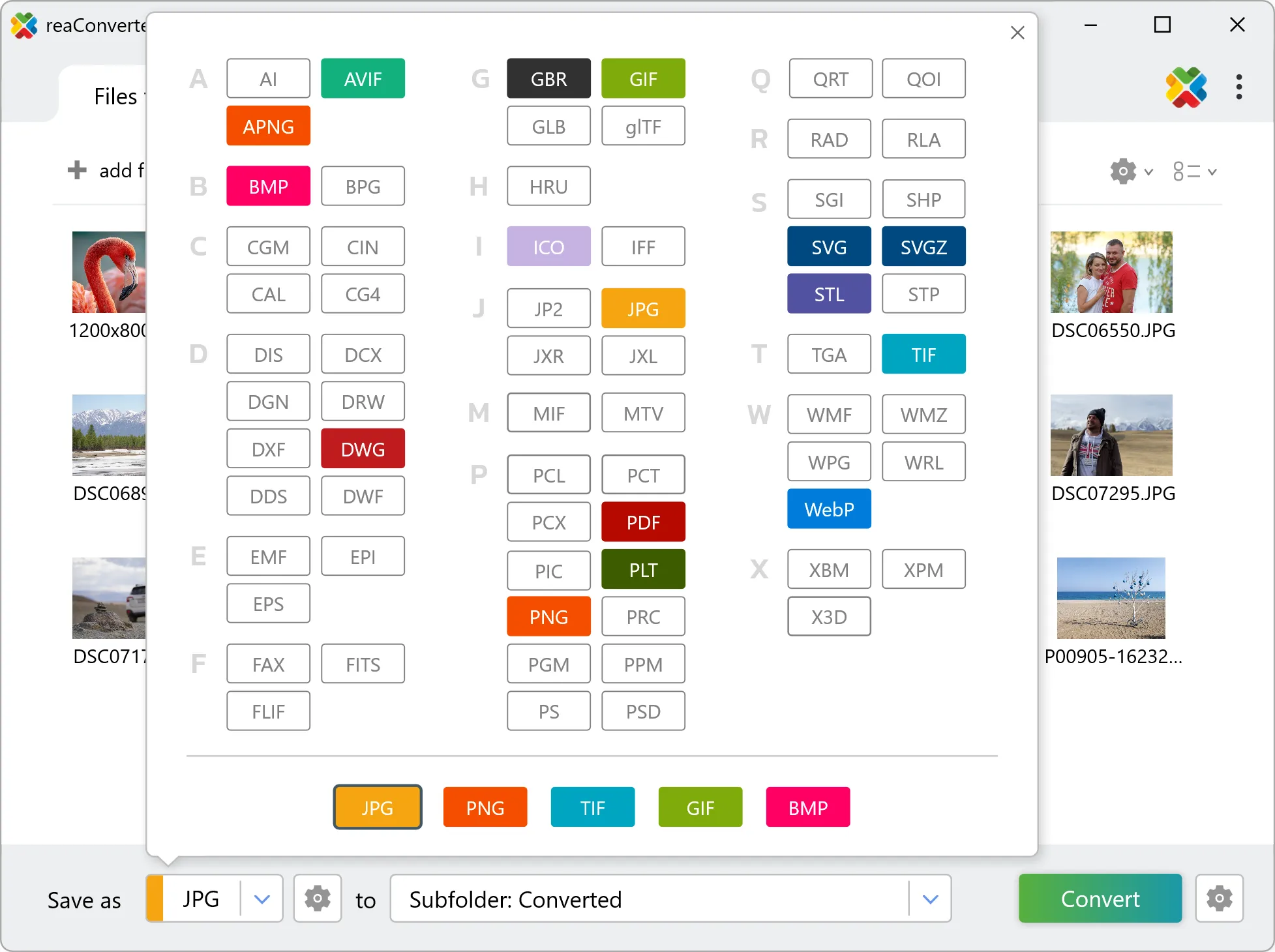
Yes! reaConverter instantly converts .ico to .tga with perfect quality preservation. With its batch processing feature, you can convert multiple files at once in just a few clicks. You can even convert ICO images directly from Windows Explorer using the right-click menu — fast and convenient.
What is reaConverter used for?
reaConverter is a software program used for converting images and other types of files from one format to another. It supports a wide range of file formats and allows users to convert multiple files at once, making it a valuable tool for graphic designers, photographers, and other professionals who work with digital images. reaConverter also includes features for resizing, cropping, and editing images, along with batch processing capabilities that help automate repetitive tasks.
Can I convert ICO to TGA in my browser?
Yes — with our free web-based ICO to TGA converter, you can convert .ico files instantly, right in your browser. No installation, no uploads — perfect for quick, local conversions.
How can I turn ICO files into TGA on my computer?
The best way to change ICOs to TGAs on your PC is to install a quality piece of software, such as reaConverter. This software is extremely efficient in managing a wide range of batch files conversions, including conversion from ICO to TGA.
How can I automate ICO to TGA files conversion?
reaConverter supports all the most useful automation features such as right-click сonversion and Watch Folders for the most efficient automated files conversion in any software of this type.
Is there a way to convert ICO files to TGA using the command prompt?
reaConverter provides full access to all its features via Windows command line, including a high-performance command-line ico to tga converter for batch processing.
What else can I do with reaConverter?
Convert CAD formatsSet file dateConvert DICOM imagesCrop fileConvert Gerber images
Related conversions
Other ways to convert ICO files, and other sources that convert to TGA.