


How to Convert Multiple .nef Images to .glb?
1. Download and Install reaConverter
reaConverter installs quickly on any Windows PC. No dependencies, no bloatware — just a clean setup that's ready to use immediately. Need edits? Resize, rotate, or add watermarks during conversion.

2. Load your NEF files
Launch reaConverter and load the NEF files you want to convert. Add a few files or thousands, batch processing handles them all.
Drag files into the window, use the Add Files button, or select entire folders.

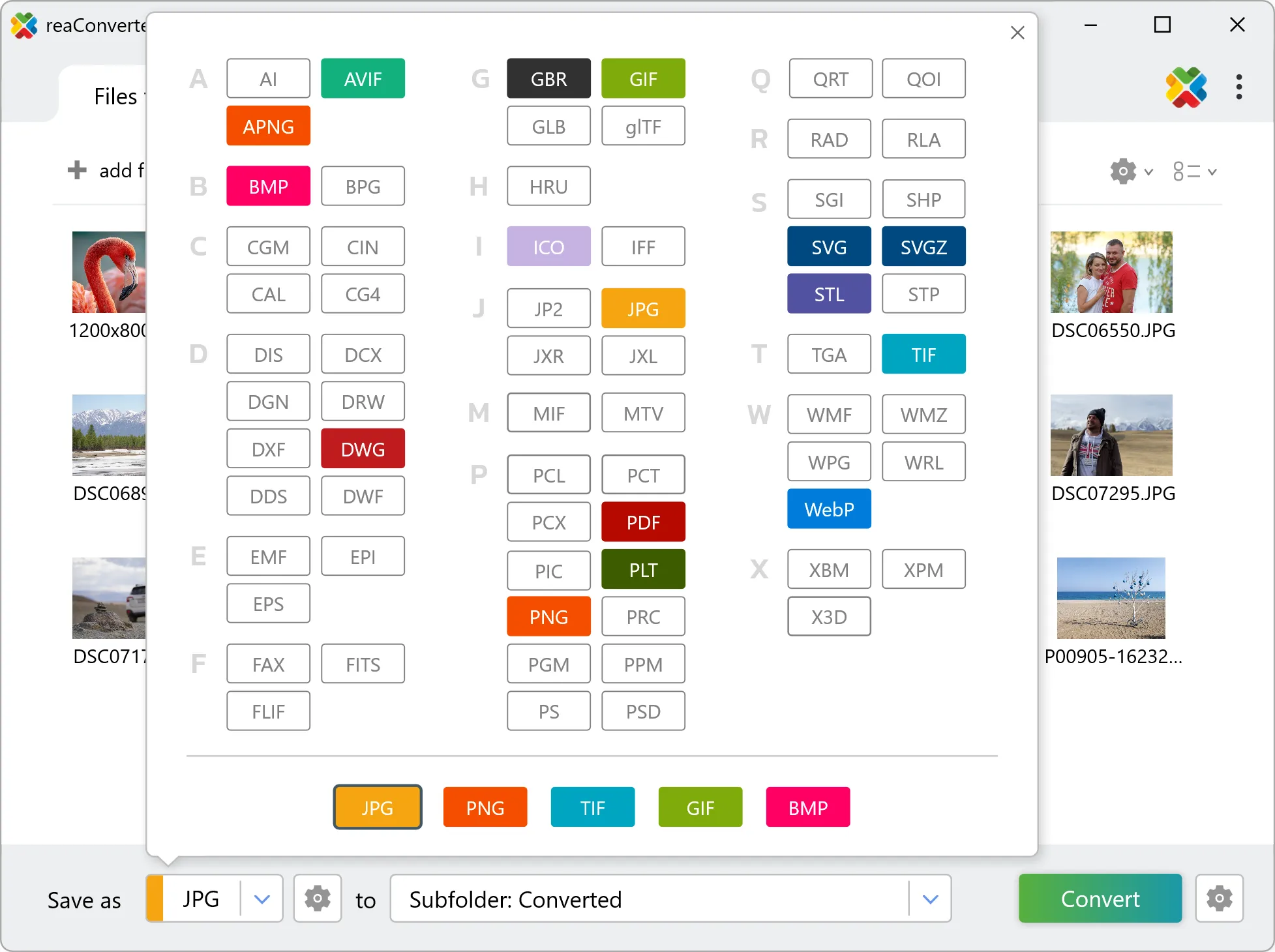
3. Select GLB as output format
Select GLB from the output format list and set your destination folder. You can also adjust quality and compression settings.
4. Start NEF to GLB conversion
Hit Convert to process your files. The log window shows progress, timing, and status for every file.

Conversion complete? Your GLB files are saved to the destination folder, ready to use.


