
How to Convert Multiple ORF Images to GIF?
1. Download and Install reaConverter
Download reaConverter and install it in seconds. The setup is straightforward — no complex configuration, no extra software required. You can also resize, crop, and adjust images during conversion.

2. Load your ORF files
Load your ORF RAW photos into reaConverter. Add entire shoots at once and process them in minutes.
Browse for files, drag them in, or add entire folders at once. reaConverter queues everything automatically.

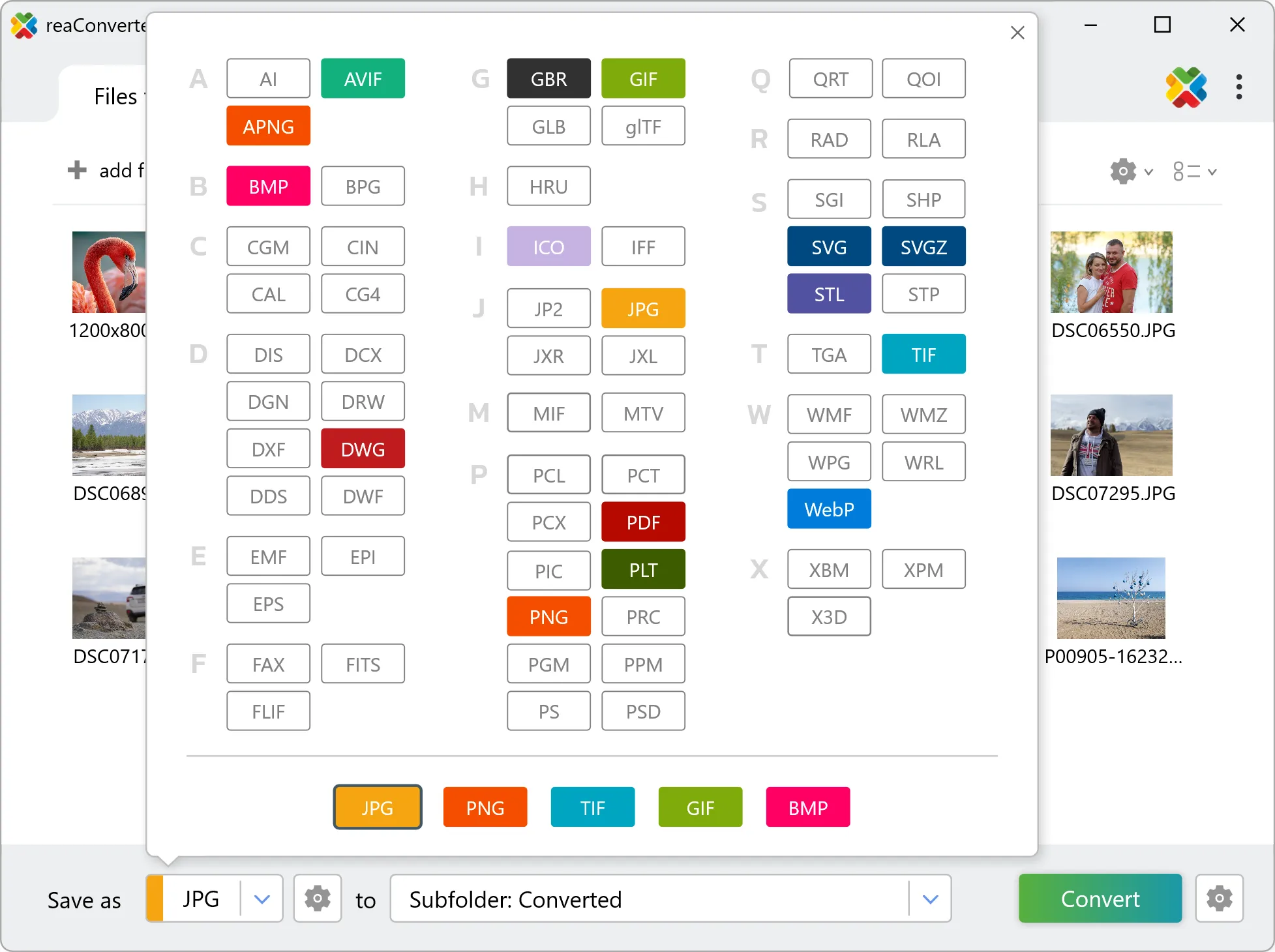
3. Select GIF as output format
Choose GIF as output format. Adjust color profile, quality, and resolution settings to match your photography workflow.
4. Start ORF to GIF conversion
Start the conversion with one click. reaConverter handles everything and notifies you when it's done.

When the batch finishes, your GIF files are ready in the destination folder you chose earlier.
Before you convert ORF to GIF
ORF files hold unprocessed sensor data, so white balance and exposure are still adjustable. Converting to GIF bakes those decisions into the pixels, and highlight recovery is no longer available afterwards. Set white balance and exposure before the run rather than after. GIF stores a limited palette rather than full colour, so the conversion has to reduce the number of distinct colours. Photographic content shows this as banding, while flat graphics and icons usually survive it untouched.