
How to Convert Multiple SR2 Images to SVG?
1. Download and Install reaConverter
Install reaConverter for fast SR2 conversion. Quick setup, then you're ready to process entire photo shoots. Apply image edits like resize, crop, or color adjustment while converting.

2. Load your SR2 files
Add SR2 files to reaConverter. One file or a thousand, the process is the same. Everything runs locally on your machine.
Drag-and-drop SR2s directly into reaConverter or use the folder browser to load entire directories.

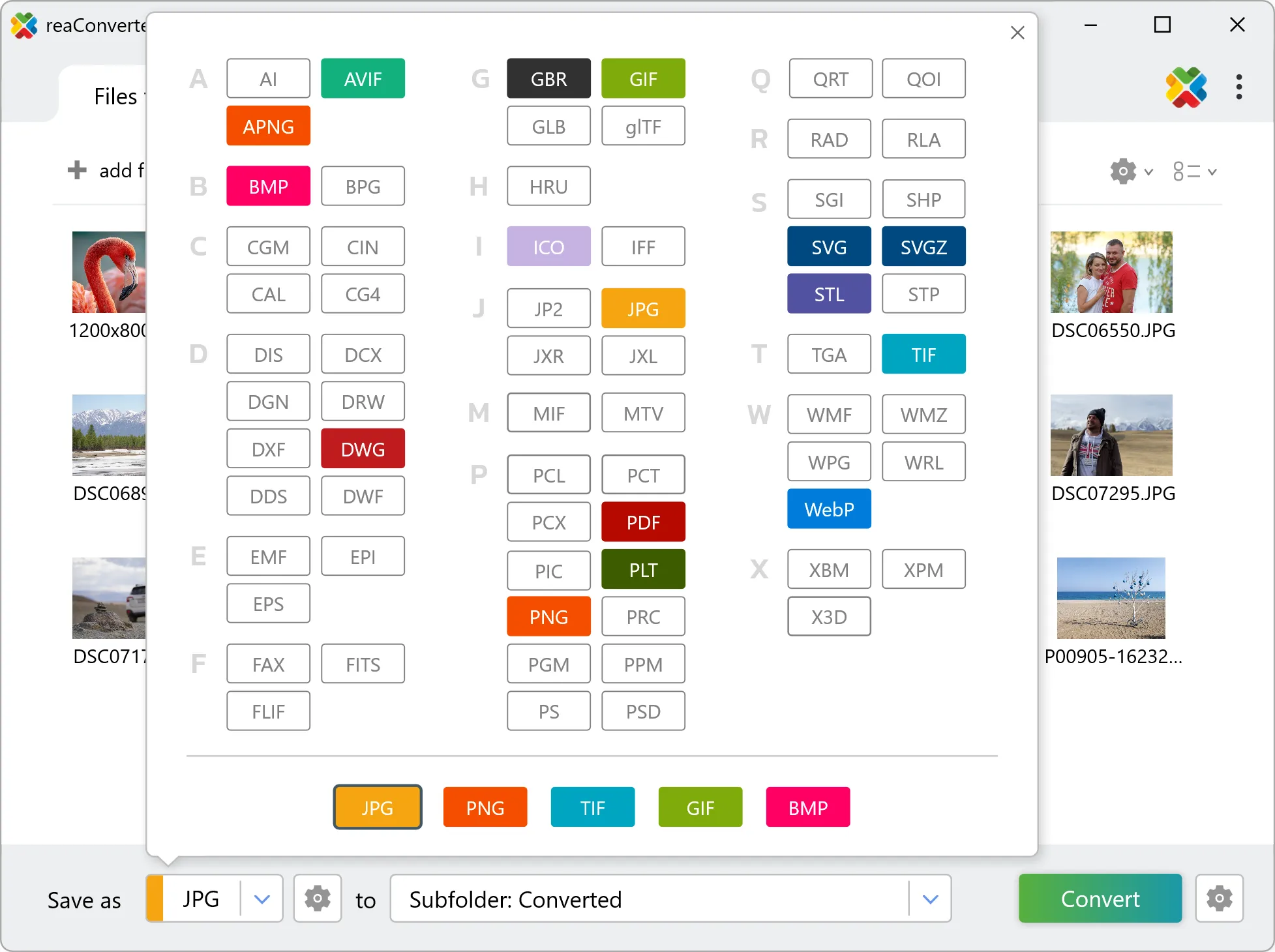
3. Select SVG as output format
Set SVG as output format and select where to save your converted files. Customize quality settings if needed.
4. Start SR2 to SVG conversion
Press Convert to begin processing. You can watch the progress or minimize and let it run in the background.

Your converted SVG files will appear in the destination folder as soon as processing completes.
What changes when you convert SR2 to SVG
SR2 files hold unprocessed sensor data, so white balance and exposure are still adjustable. Converting to SVG bakes those decisions into the pixels, and highlight recovery is no longer available afterwards. Set white balance and exposure before the run rather than after. SR2 is made of pixels and SVG is a geometry format, so the two describe images in fundamentally different ways. Check the result before sending it downstream: what matters is whether the output contains editable geometry or a picture placed inside a SVG container, and that determines whether a CAD or design tool can work with it.