Auto Crop Images
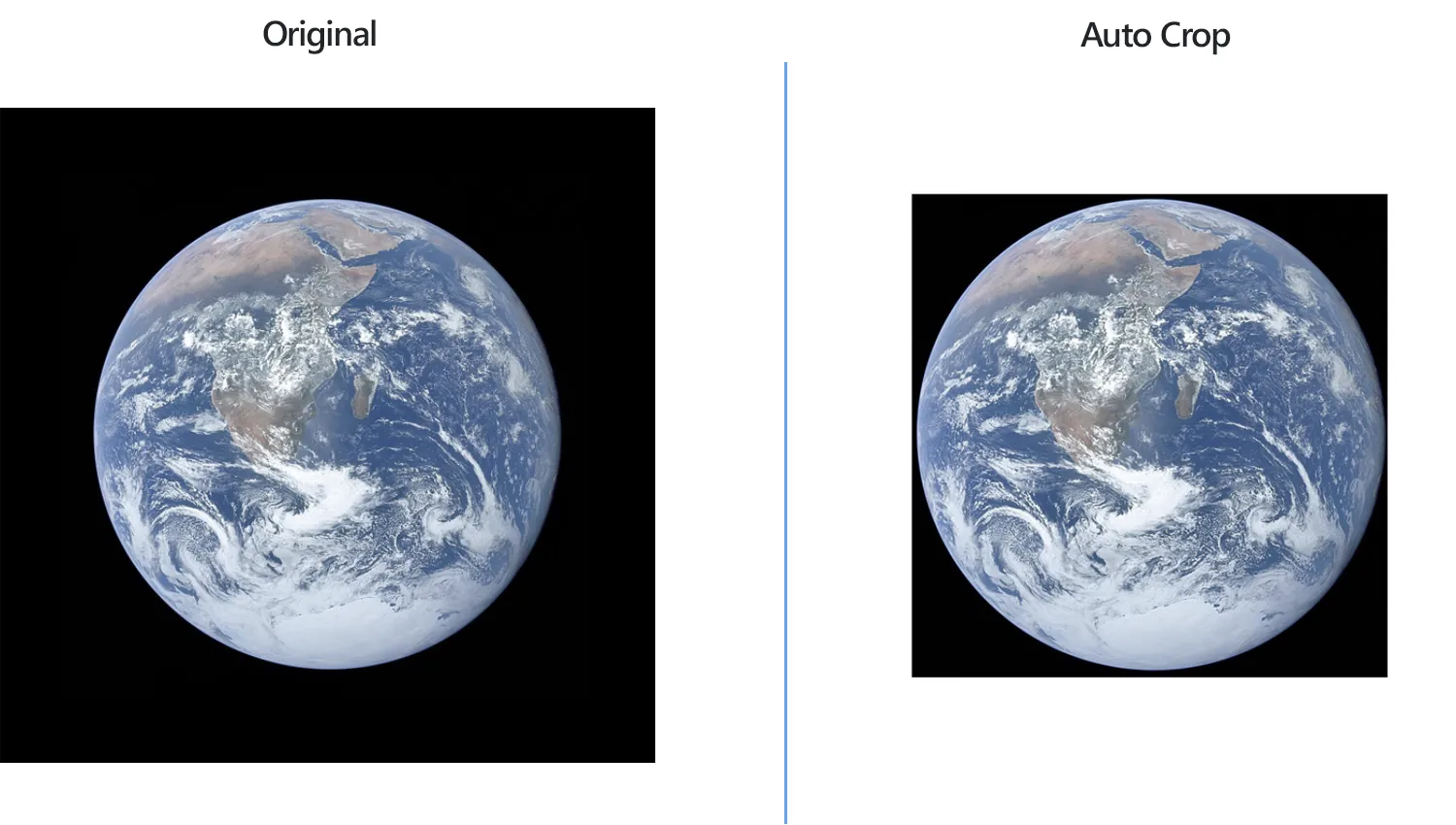
How to Crop a Batch of Images Automatically?
1. Open Images
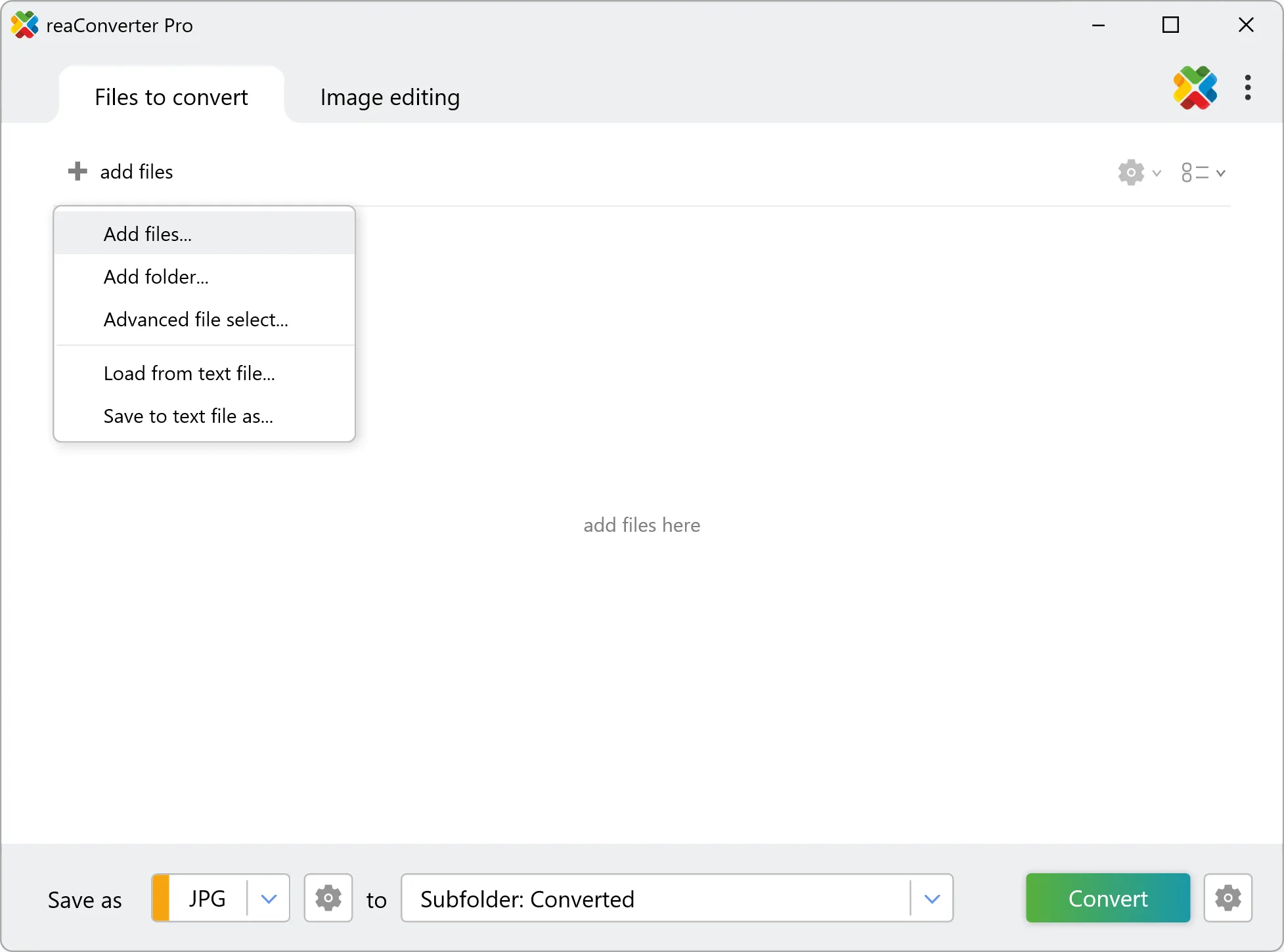
Add all the image files you intend to crop, either by browsing your computer or using the drag-and-drop tool. Alternatively, you can add entire folders here, or load files from a .txt file-list.
2. Add Auto Crop Action
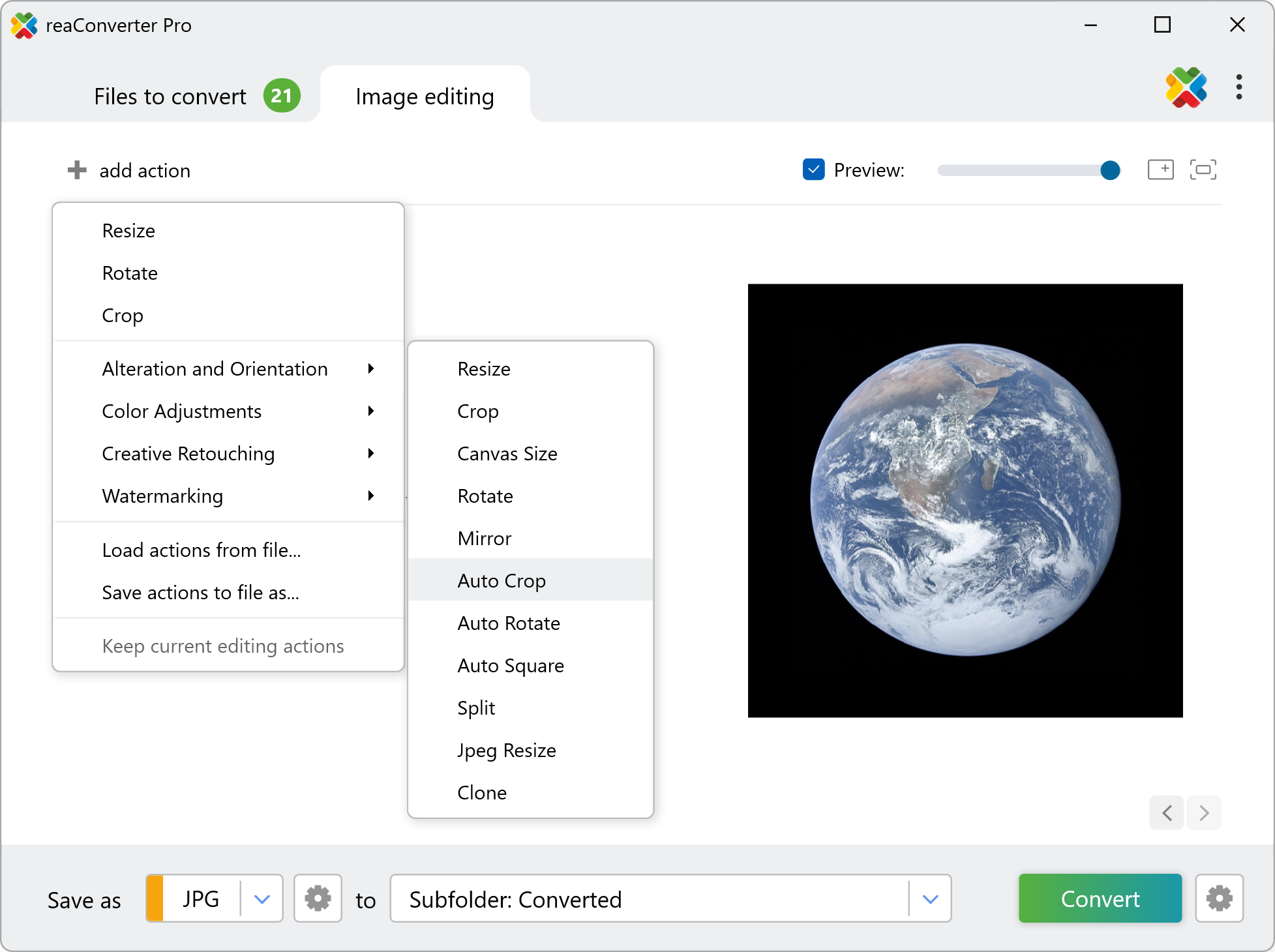
Go to the Image editing tab, press the + add action button and pick Alteration and Orientation from the dropdown menu, and then click Auto Crop.
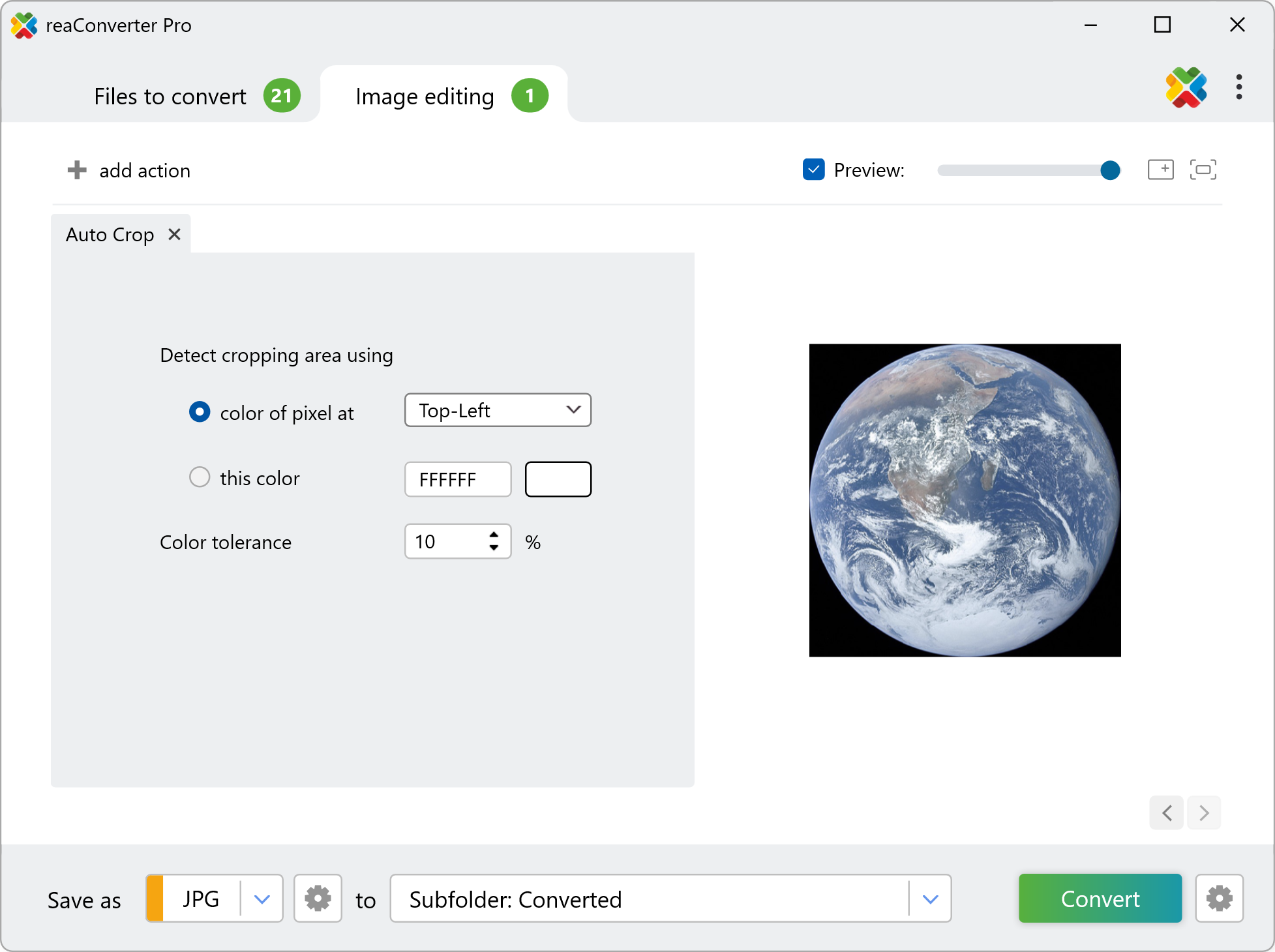
Now you will be able to easily detect the area you intend to crop by selecting the color of pixels from the top-left, top-right, bottom-left or bottom-right part of the image. Or by selecting one particular color using the handy color picker tool directly on the preview image. Here you can also enter a particular color tolerance, if you like.
3. Save the Result
In the Saving options tab, you will find several possibilities in terms of locating your cropped images. Choose a local folder, your could-service account or several other options. Then decide if you want to preserve the initial format of your images or convert them to another one by simply selecting the extension from formats list.
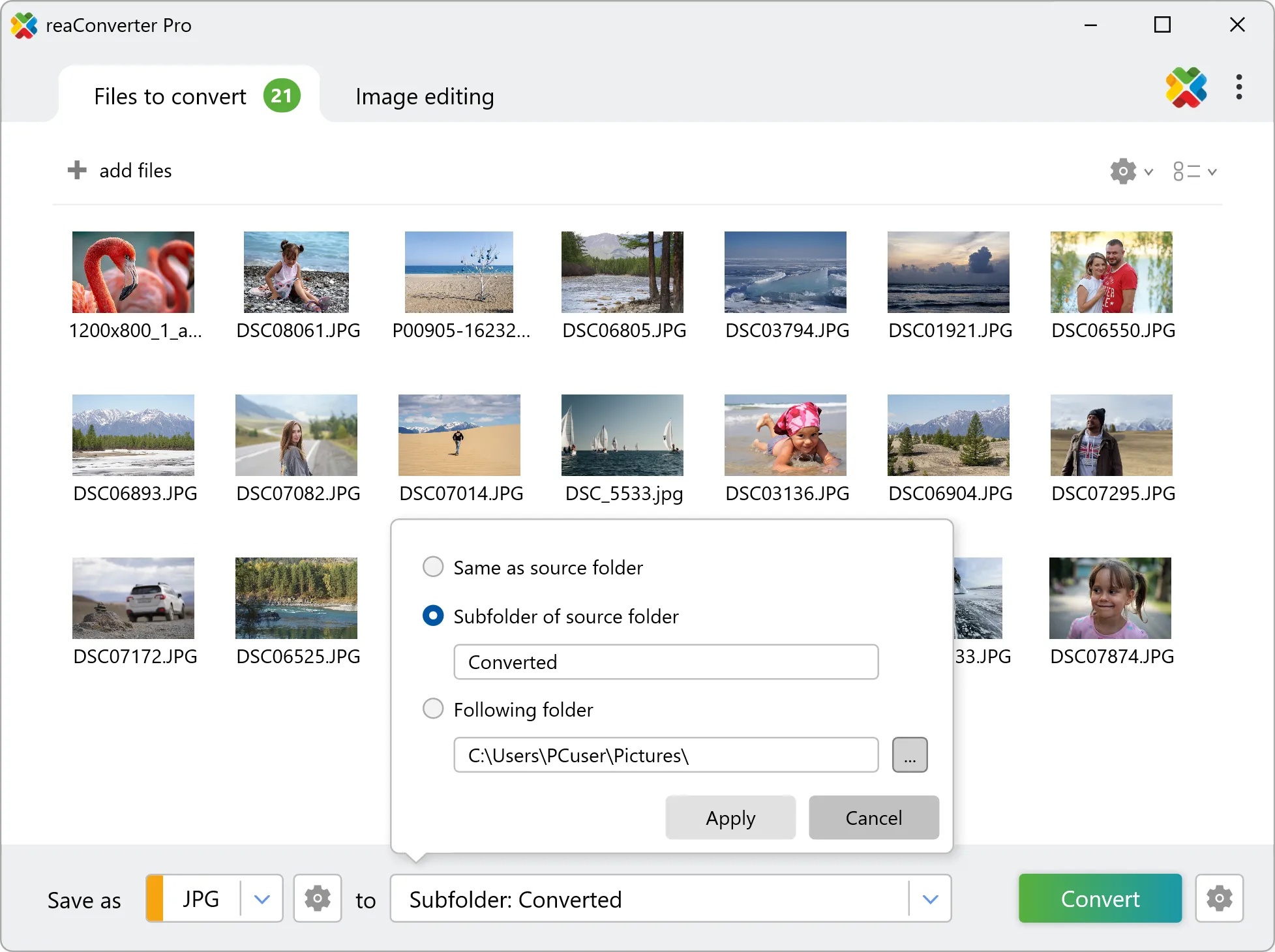
After this is done, just click Convert and your cropped images will be ready sooner than you expect!
Watch How It Works
Cropping images on your PC
The fast and easy way to auto crop files on your PC is to use reaConverter. The software runs completely offline, keeping your files safe and private.
Command line
Auto crop with command-line tool
You can also auto crop images using command-line interface, either manually or through automated scripts. reaConverter Pro includes a command-line tool called cons_rcp.exe — an advanced feature designed for professional use, available exclusively in the Pro edition.
Auto Crop example:
cons_rcp.exe -s "C:\Path_to\input_file.jpg" -o "C:\Path_to\output_file.jpg" -auto_crop tl t25
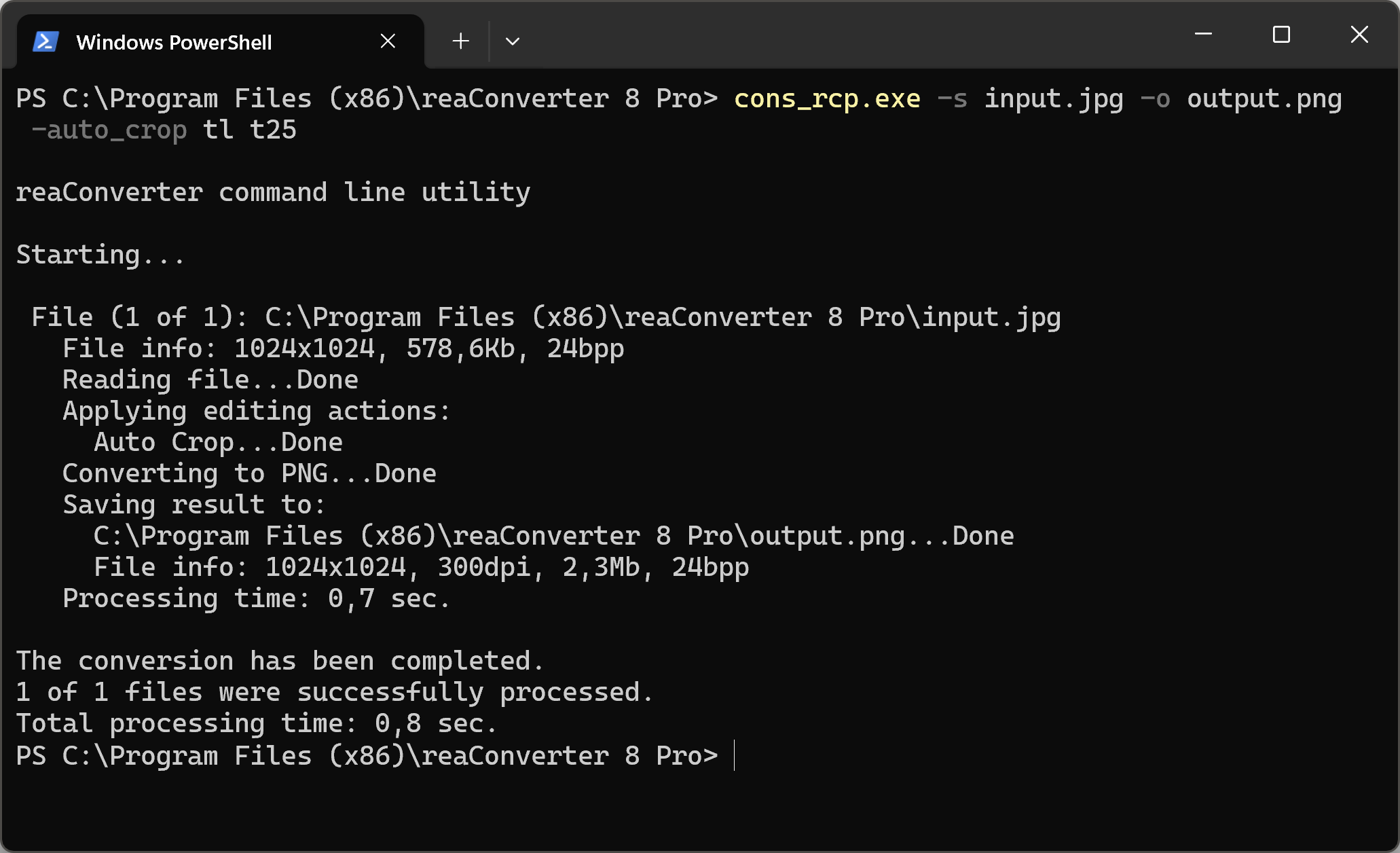
Manual
-auto_crop (applies auto crop)
  Optional parameters:
	  1. Use color at corner (Syntax: tl, tr, bl, br)
	     where "tl", "tr", "bl", "br" mean Top-Left, Top-Right,
	     Bottom-Left, Bottom-Right.
	  2. Use specified color (Syntax: rgb(66,137,212), hex(4289d4))
	  4. Tolerance for colors coincidence (Syntax: t25, integer from 0 to 100)
  Example:
    -auto_crop tl t25
You are welcome to contact our technical support when you have any questions about reaConverter.
Discover More
More than a converter
Advanced batch processing and editing for 800+ file formats, including CAD, medical imaging, and GIS. No cloud, no upload limits.
