Blur

How to Blur Images in Bulk?
1. Open Images
Open the images you intend to edit using the software's drag-and-drop feature or pick them one by one from a location on your computer. You can also add entire folders or load images from text files.
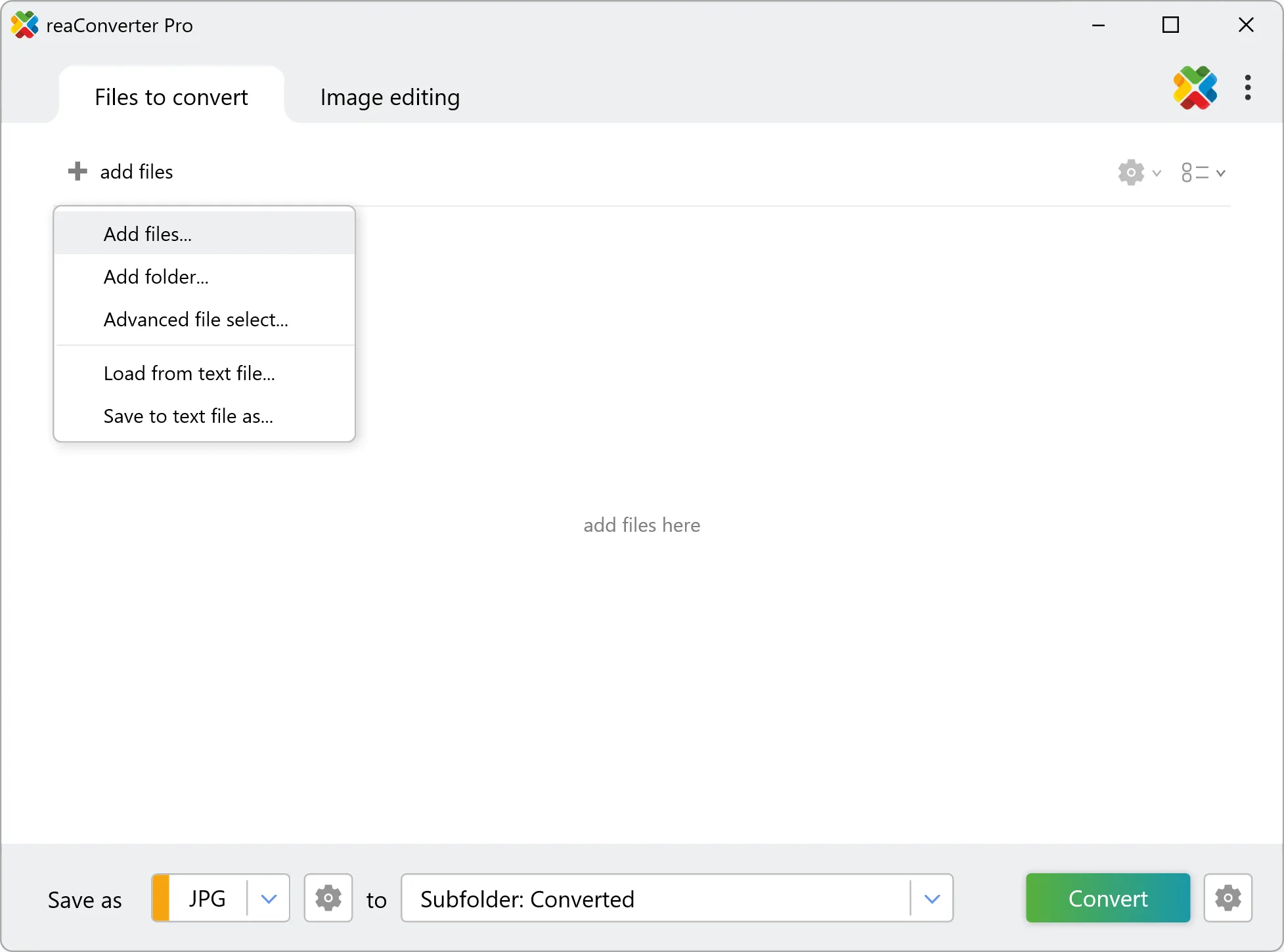
2. Add Blur Action
In the Image editing tab, go to Add action → Creative Retouching → Blur
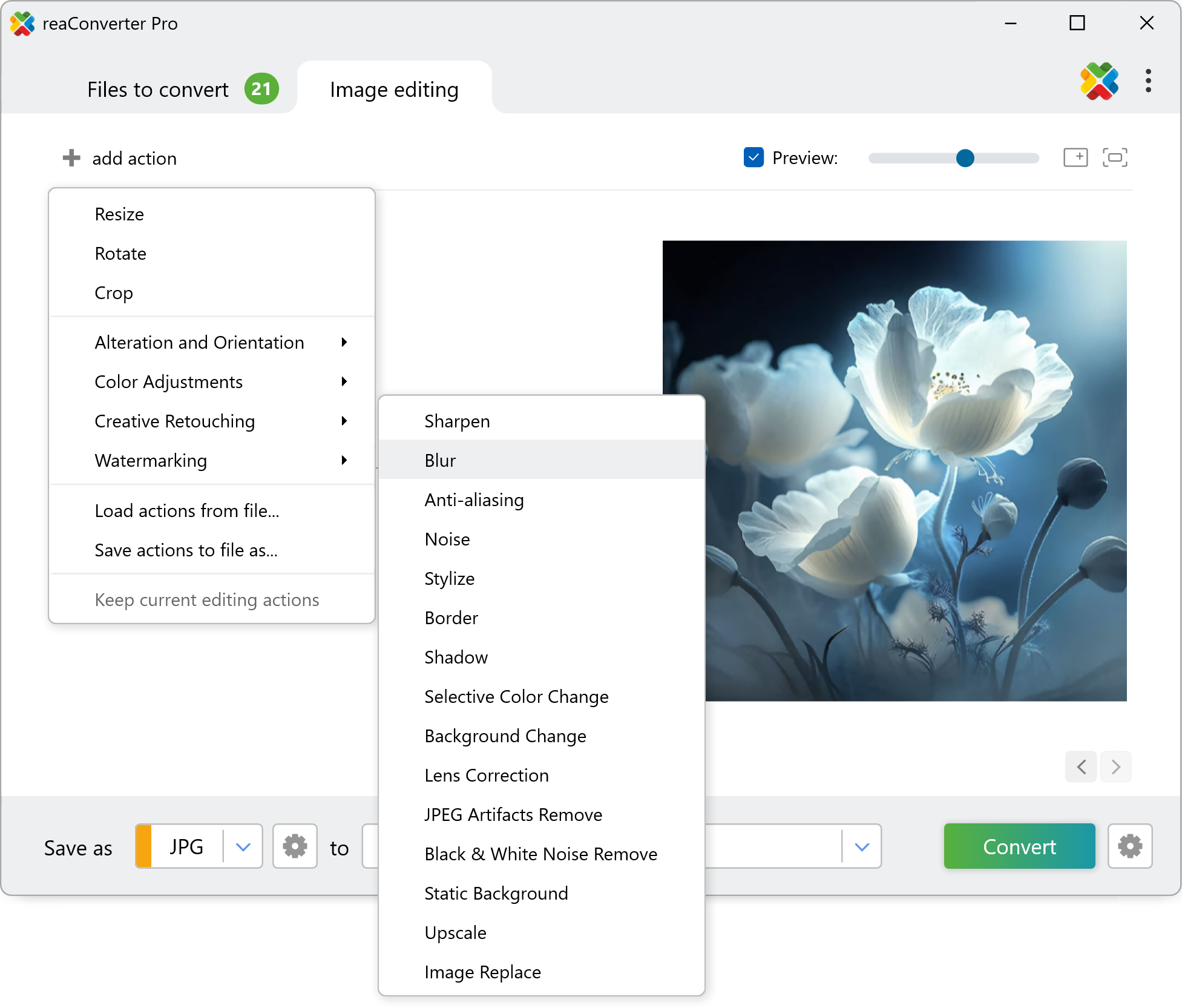
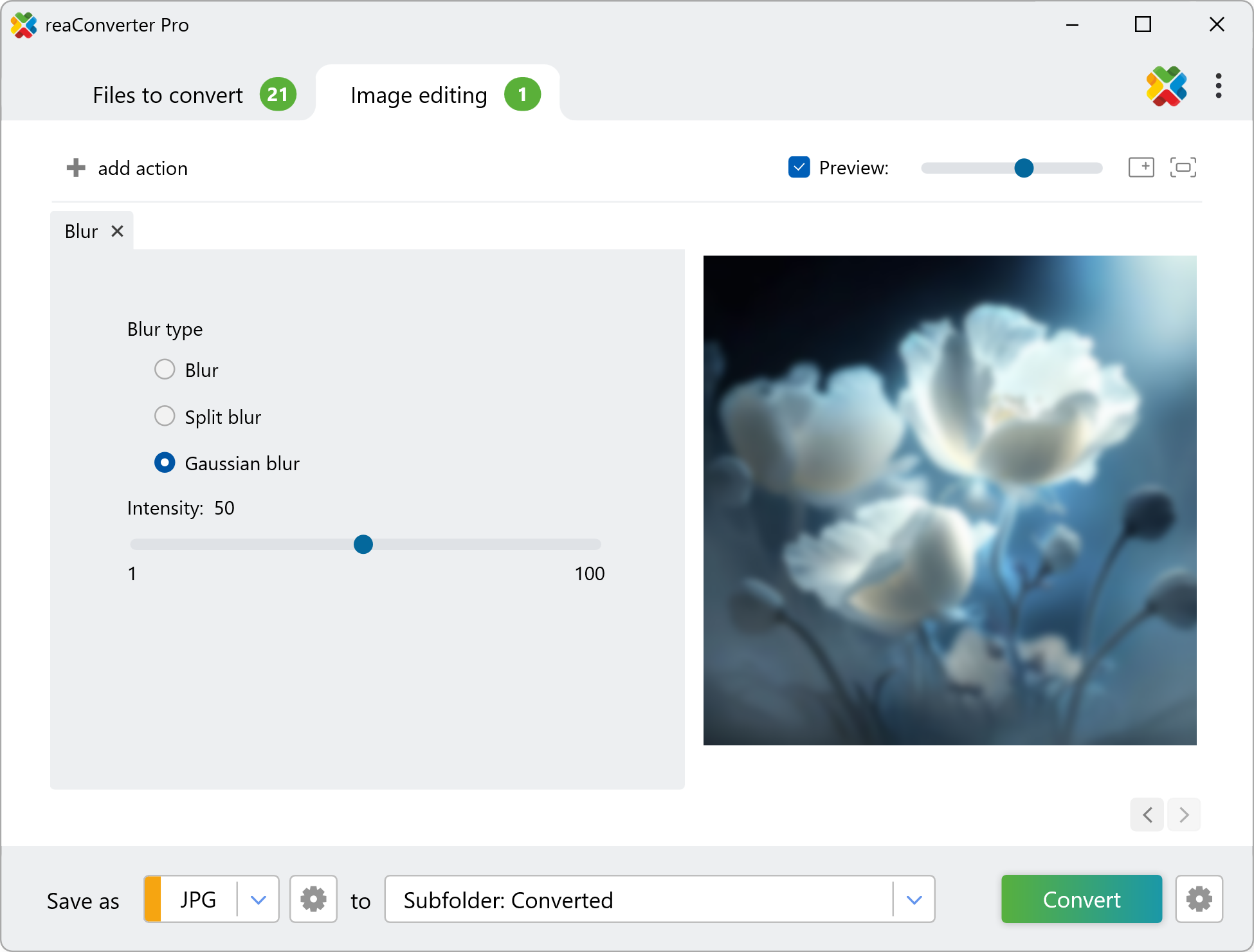
Here you will be able to select the type of blurring effect you intend to apply on your images. The available options include Split blur and Gaussian blur, and each can be applied with customized intensity using the handy scroll bar placed below. The real time effect of your selection is visible in the right side of the window when you click the Preview button.
3. Save the Result
Decide on the location of your edited images. Before completing the editing process, don't forget this powerful software also supports conversion in and from an impressive number of image file formats.
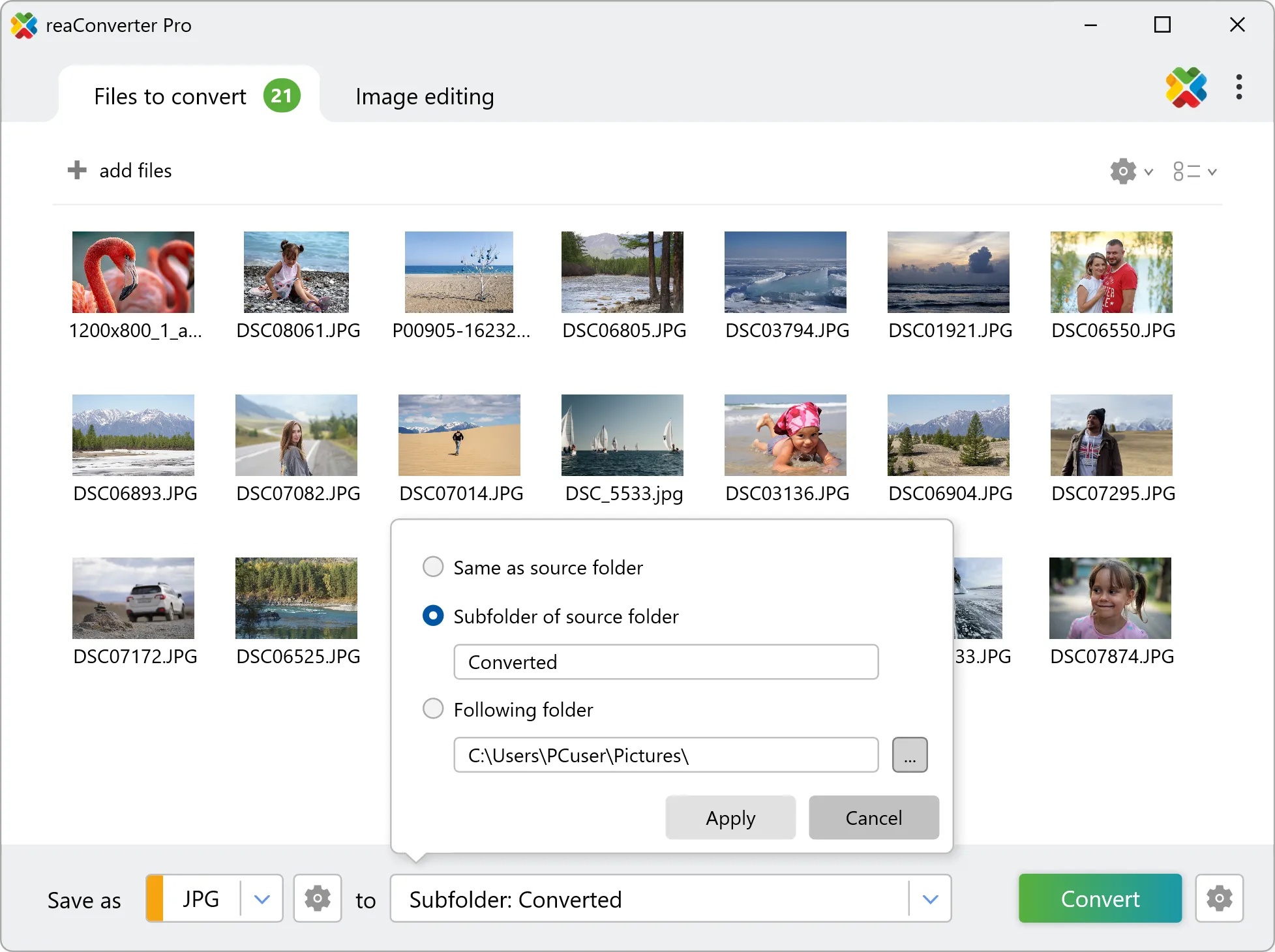
Then press Convert and enjoy your new files in a few moments!
Blur images on your PC
The fast and easy way to blur pictures on your PC is to use reaConverter. The software runs completely offline, keeping your files safe and private.
Command line
Blur with command-line tool
You can also blur images using command-line interface, either manually or through automated scripts. reaConverter Pro includes a command-line tool called cons_rcp.exe — an advanced feature designed for professional use, available exclusively in the Pro edition.
Blur example:
cons_rcp.exe -s "C:\Path_to\input_file.jpg" -o "C:\Path_to\output_file.jpg" -gaussian_blur 10
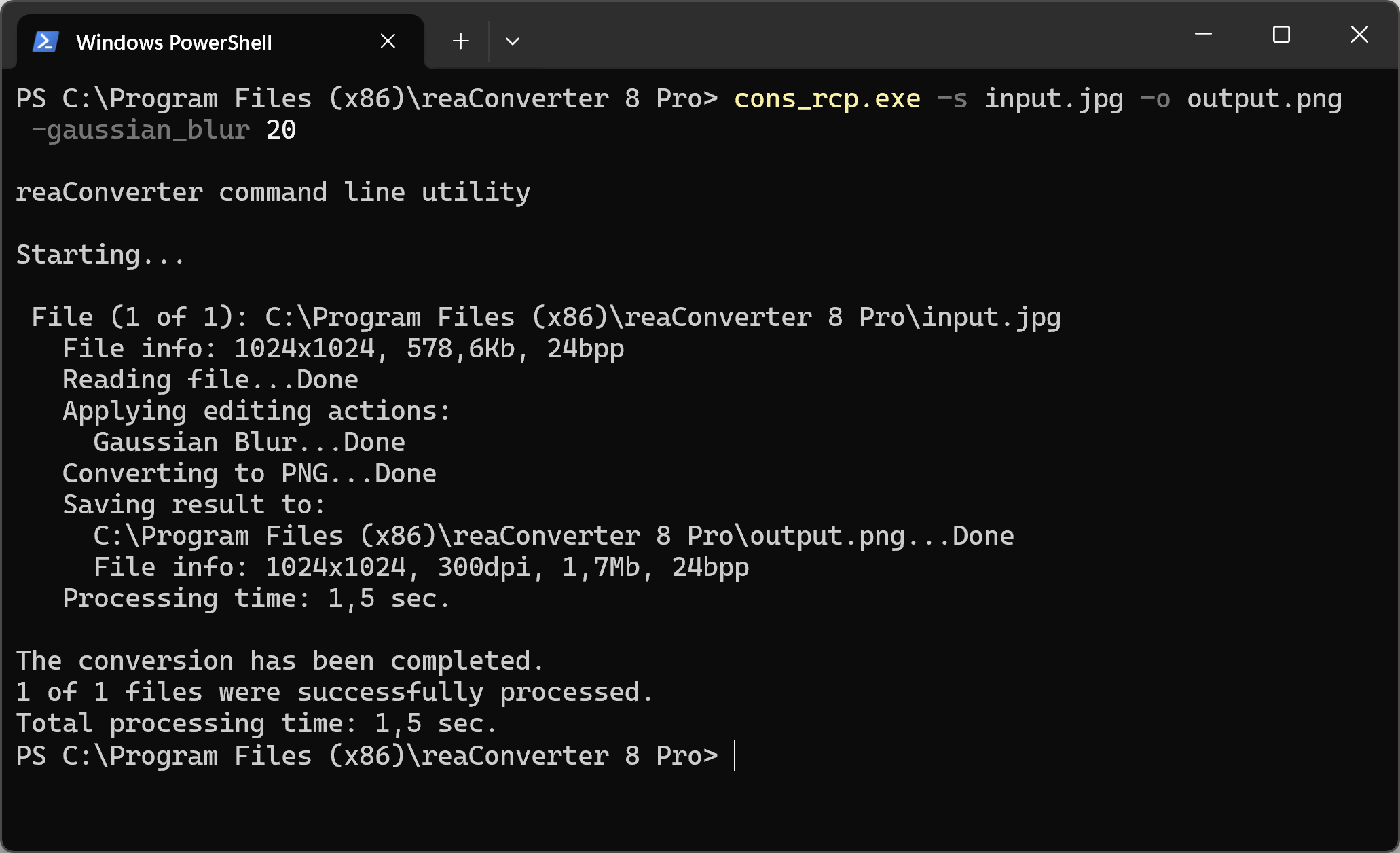
Manual
-blur (applies blur filter)
  Optional parameter:
	  1. Intensity (Syntax: 20, integer from 0 to 100)
  Example:
    -blur 20

-split_blur (applies split blur filter)
  Optional parameter:
	  1. Intensity (Syntax: 20, integer from 0 to 100)
  Example:
    -split_blur 30

-gaussian_blur (applies gaussian blur filter)
  Optional parameter:
	  1. Intensity (Syntax: 20, integer from 0 to 100)
  Example:
    -gaussian_blur 30
You are welcome to contact our technical support when you have any questions about reaConverter.
Discover More
More than a converter
Advanced batch processing and editing for 800+ file formats, including CAD, medical imaging, and GIS. No cloud, no upload limits.
