Dynamic Text Watermark
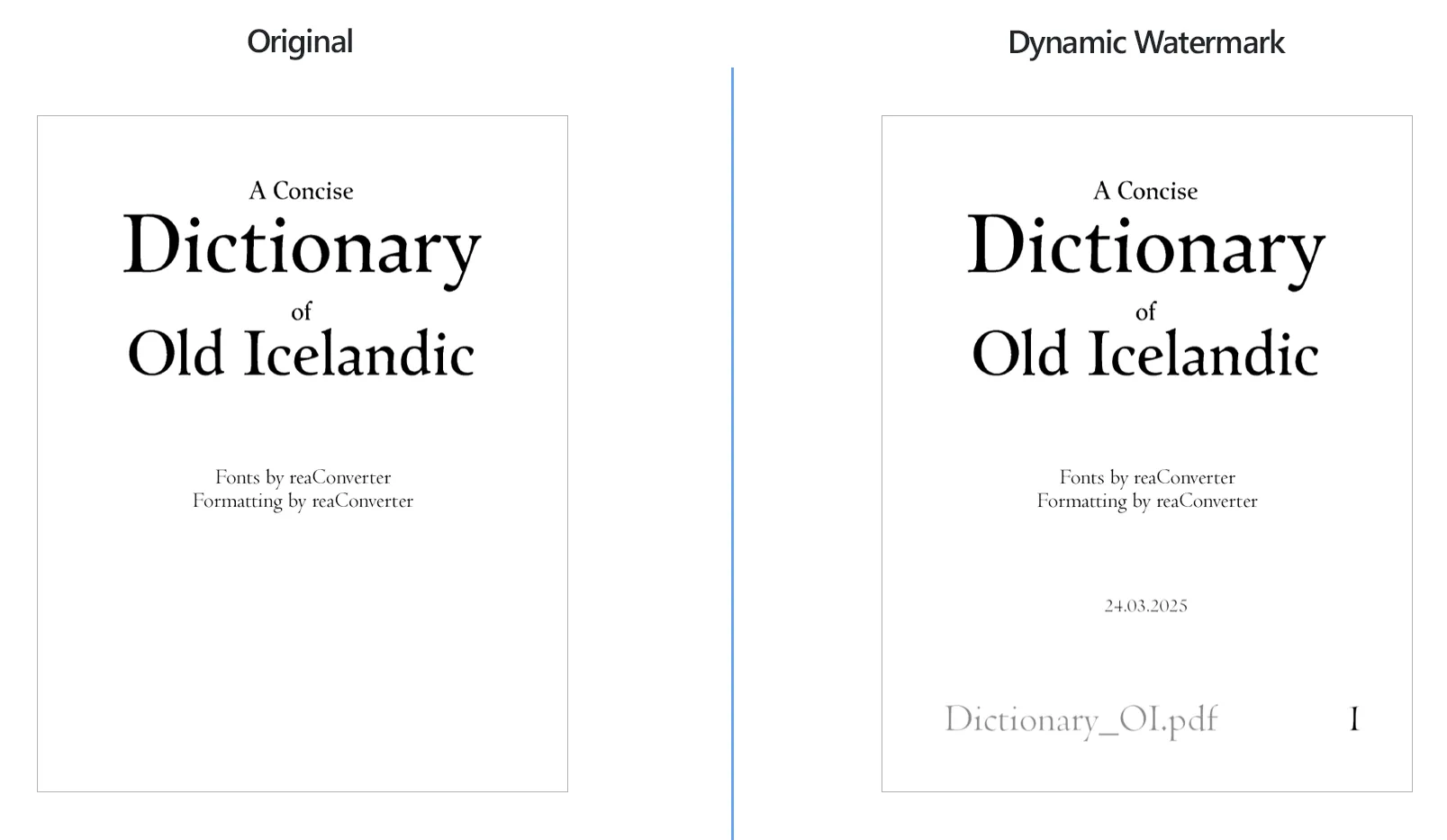
How to place dynamic watermark on images?
1. Open Images
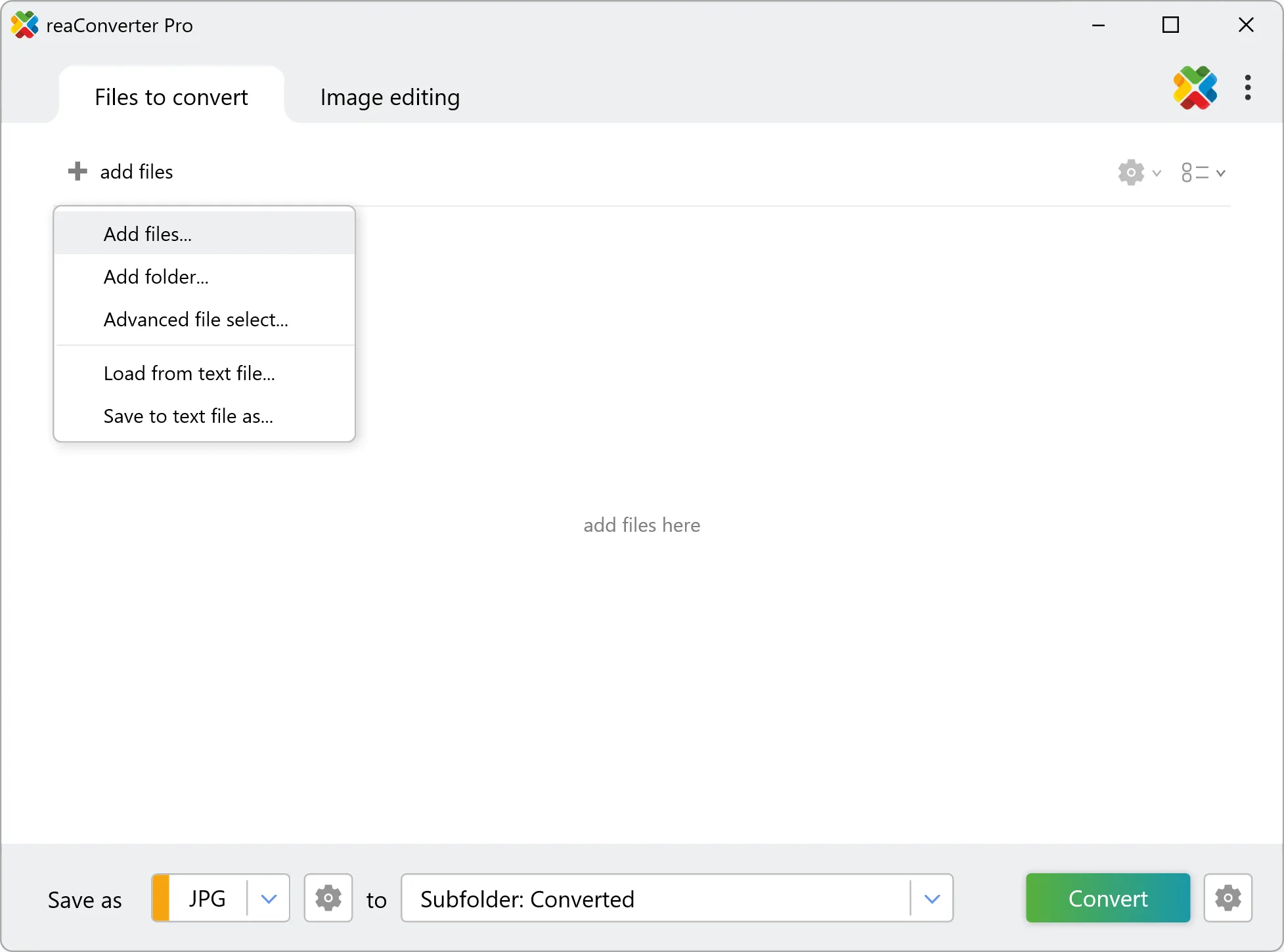
Load one or more images you intend to watermark. Use the available drag-and-drop tool or select the images manually from the desired locations.
2. Add Dynamic Watermark Action
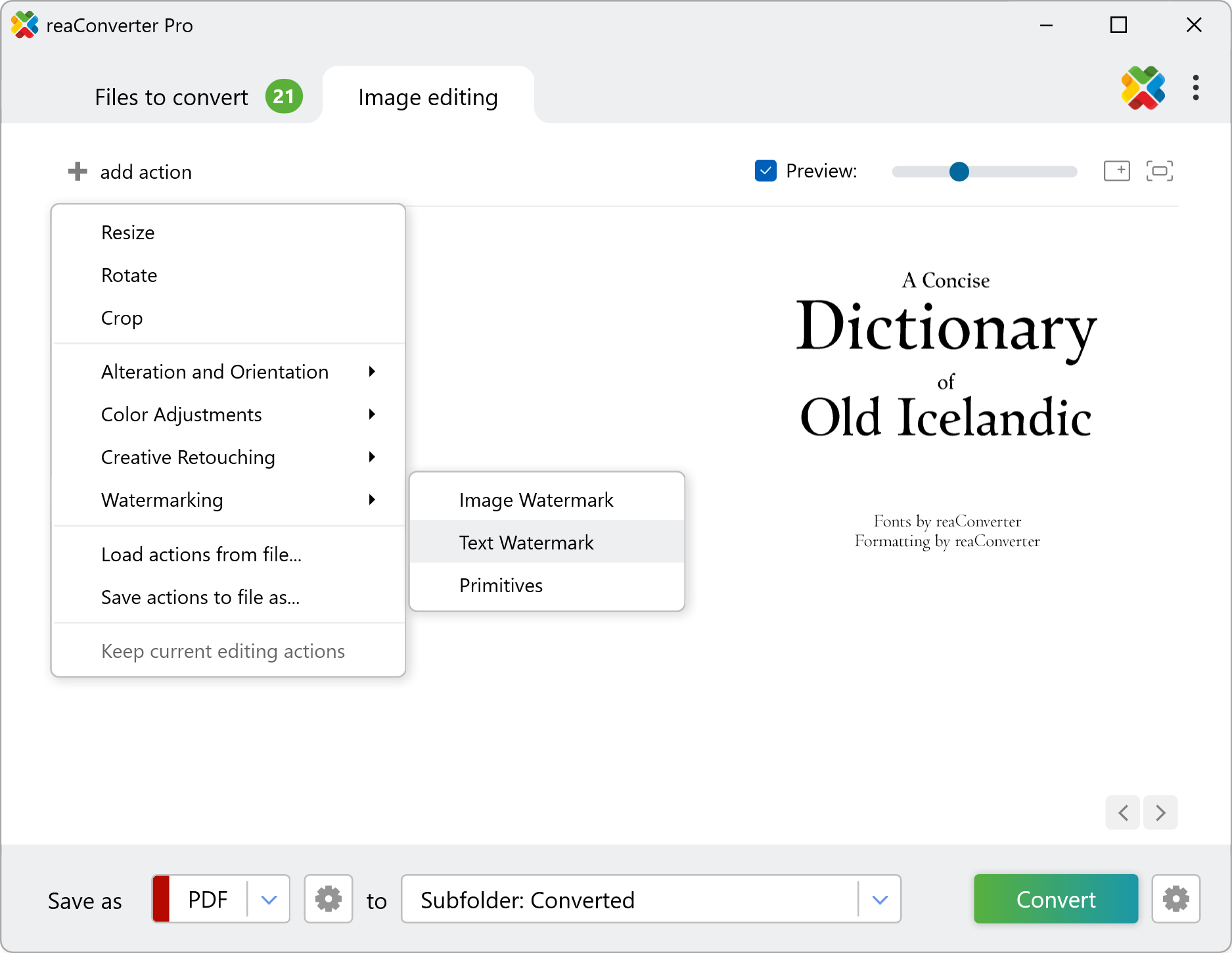
Go to the Image editing tab and click Add action → Watermarking → Text watermark
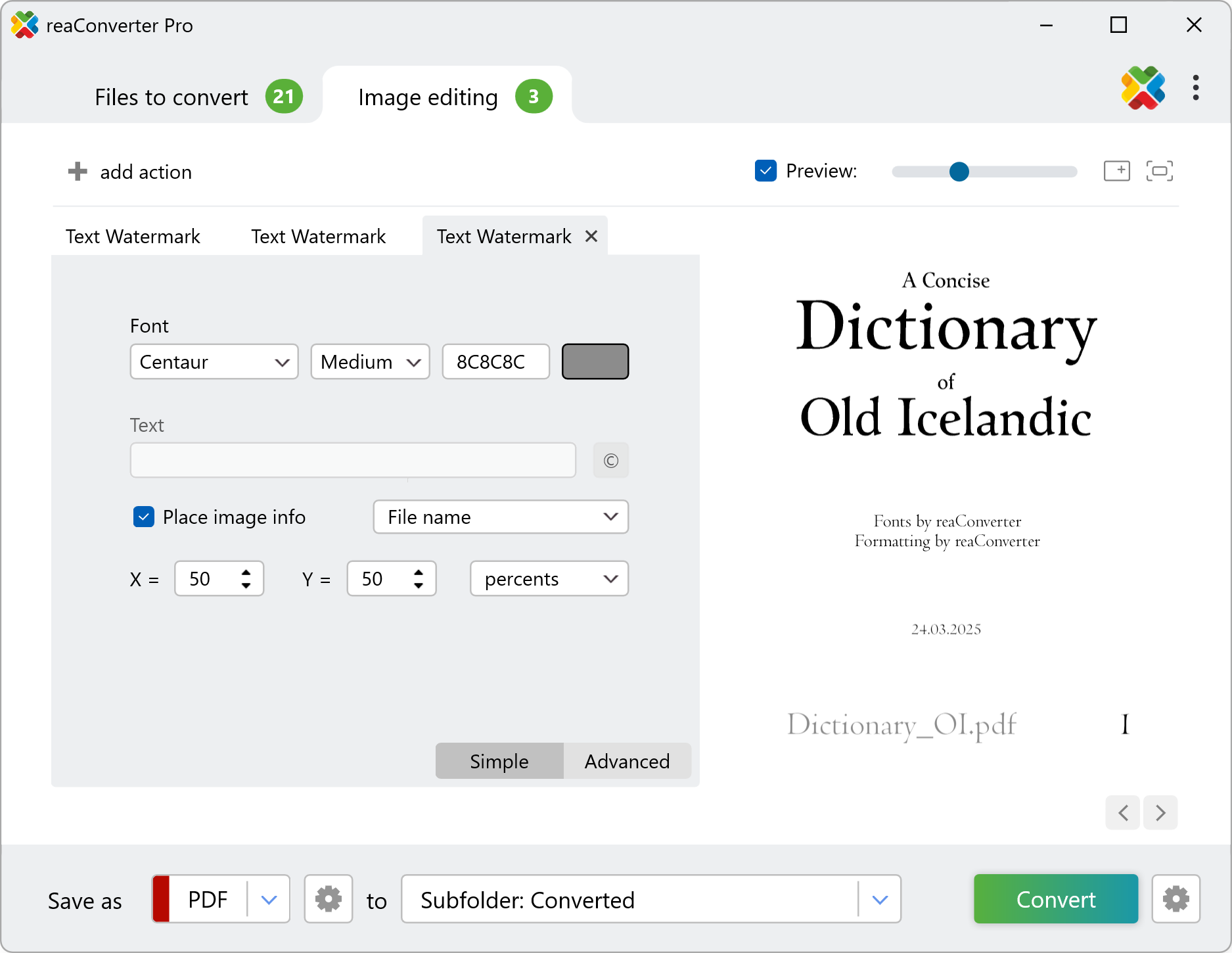
Instead of inserting a single text that will appear on all images, tick the Place image info box. You will then be able to select from a dropdown menu what info you would like to see on each image. Available options include the file name, the date and time, image description and several others. In this window you can also adjust the position of the watermark text by setting its coordinates, using pixels or percents.
Plus, if you go to the Advanced section, you can adjust the opacity of the watermark text and rotate it to a customizable number of degrees.
3. Save the Result
Finally, choose a location for your newly watermarked images. Here you can also opt for converting them to a new format, out of the comprehensive list of file extensions supported by reaConverter.
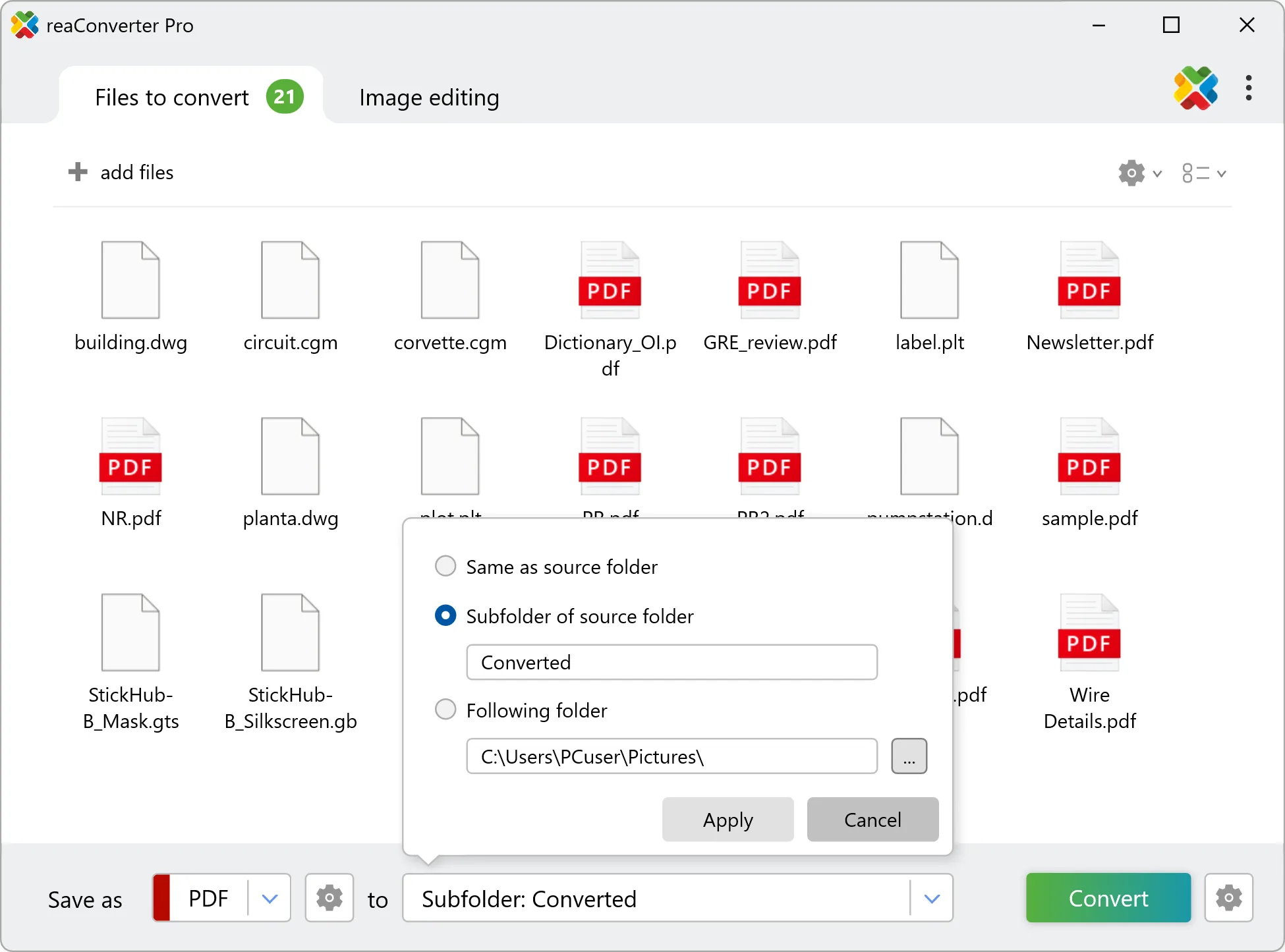
Click the Convert button and you will soon be able to enjoy your newly watermarked images.
Watch How It Works
Watermark images on your PC
The fast and easy way to place a dynamic watermark on your images is to use reaConverter. The software runs completely offline, keeping your files safe and private.
Command line
Watermark images with command-line tool
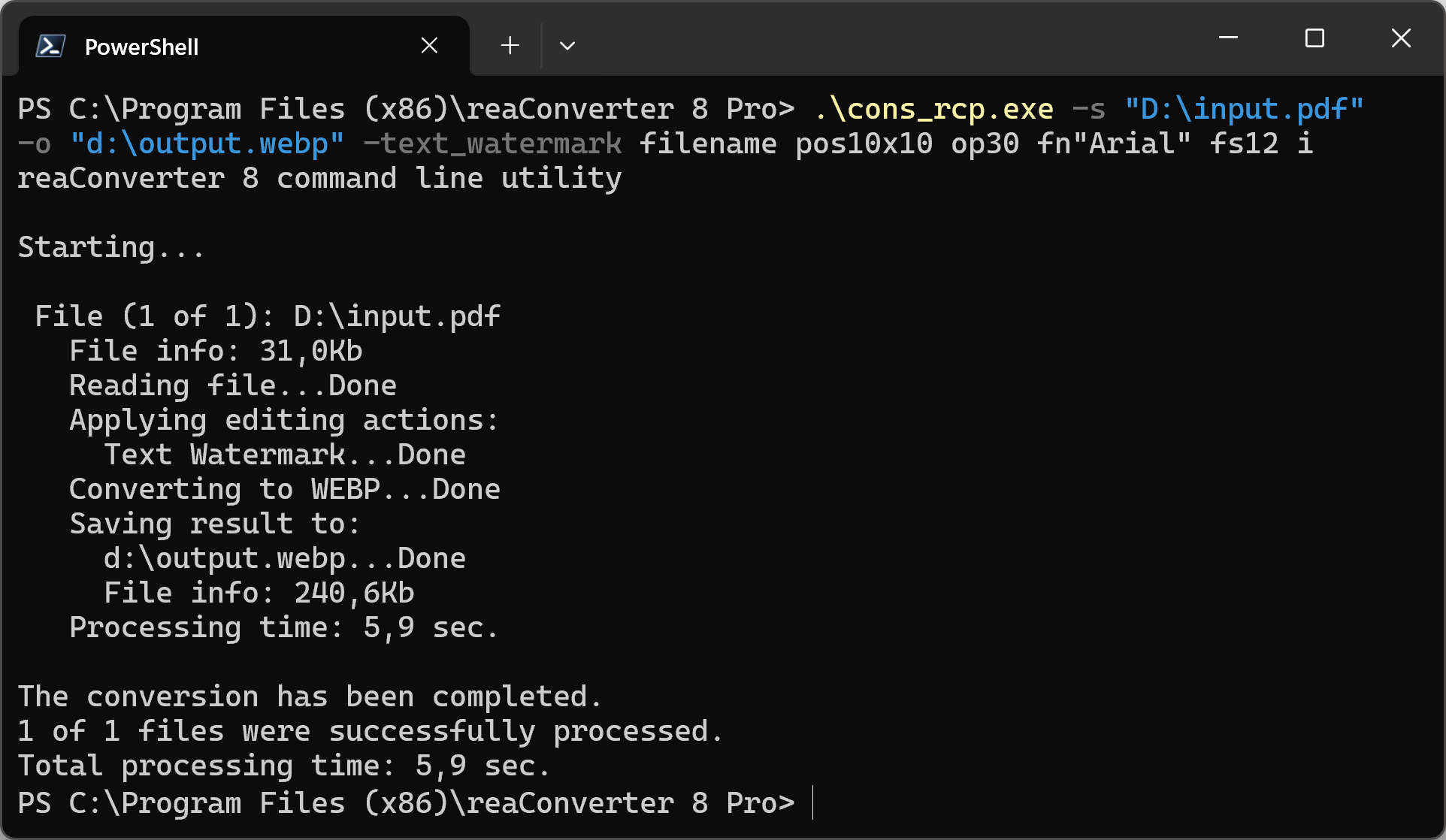
You can also watermark images using command-line interface, either manually or through automated scripts. reaConverter Pro includes a command-line tool called cons_rcp.exe — an advanced feature designed for professional use, available exclusively in the Pro edition.
Dynamic text watermark example:
cons_rcp.exe -s "C:\Path_to\input_file.jpg" -o "C:\Path_to\output_file.jpg" -text_watermark filename pos10x10 op30 fn"Arial" fs12 i
Manual
-text_watermark (adds dynamic text watermark)
  Optional parameters:
	  1. Dynamic image info (Syntax: filename, copyright, description, datetime, monthday, daymonthyear, time, comment, page)
	  2. Watermark position (Syntax: pos30x30%, pos100x200px)
	  3. Watermark opacity (Syntax: op100, integer from 1 to 100)
	  4. Rotate watermark (Syntax: rot90, integer from -360 to 360)
	  5. Font name (Syntax: fn"Arial", string with quotation marks)
	  6. Font size (Syntax: fs18, integer from 8)
	  7. Font color (Syntax: rgb(66,137,212), hex(4289d4))
	  8. Font style (Syntax: b, i, u, s) where "b", "i", "u", "s" mean bold, italic, underline, strike.
	  9. Apply to the page number (Syntax: p1, integer from 1)

  Example:
    -text_watermark filename pos10x10 op30 fn"Arial" fs12 i
You are welcome to contact our technical support when you have any questions about reaConverter.
Discover More
More than a converter
Advanced batch processing and editing for 800+ file formats, including CAD, medical imaging, and GIS. No cloud, no upload limits.
