Gamma Correction
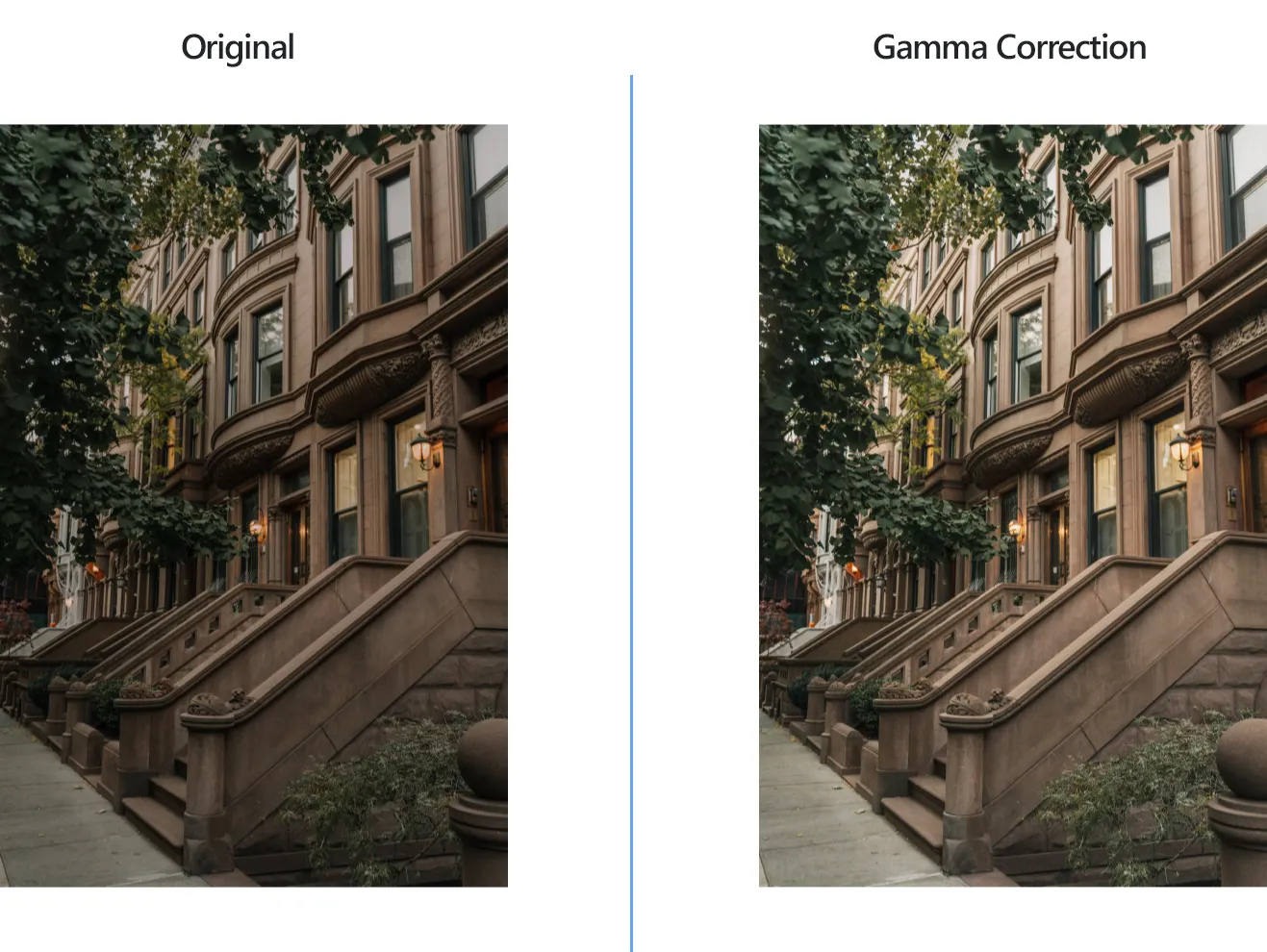
How to Apply Gamma Correction to a Batch of Images?
1. Open Images
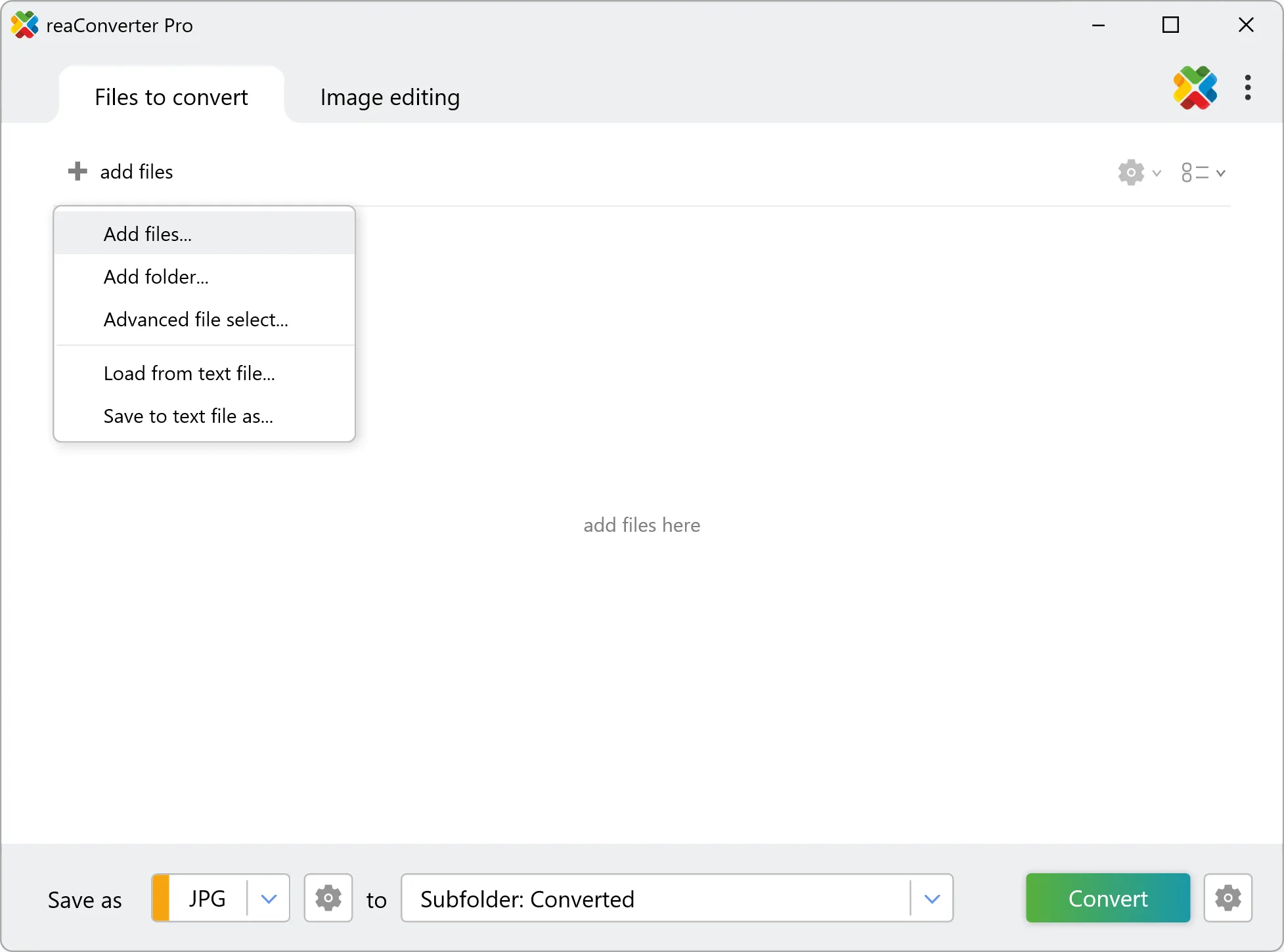
Add one or more image files by selecting them from your hard drive or by drag-and-dropping them into the reaConverter window. They can be any type of image files, because this powerful software supports not only popular extensions, such as JPEG, PNG or WebP, but also RAW, CR3, NEF, ARW, or other less known and rare image files.
2. Add Gamma Correction Action
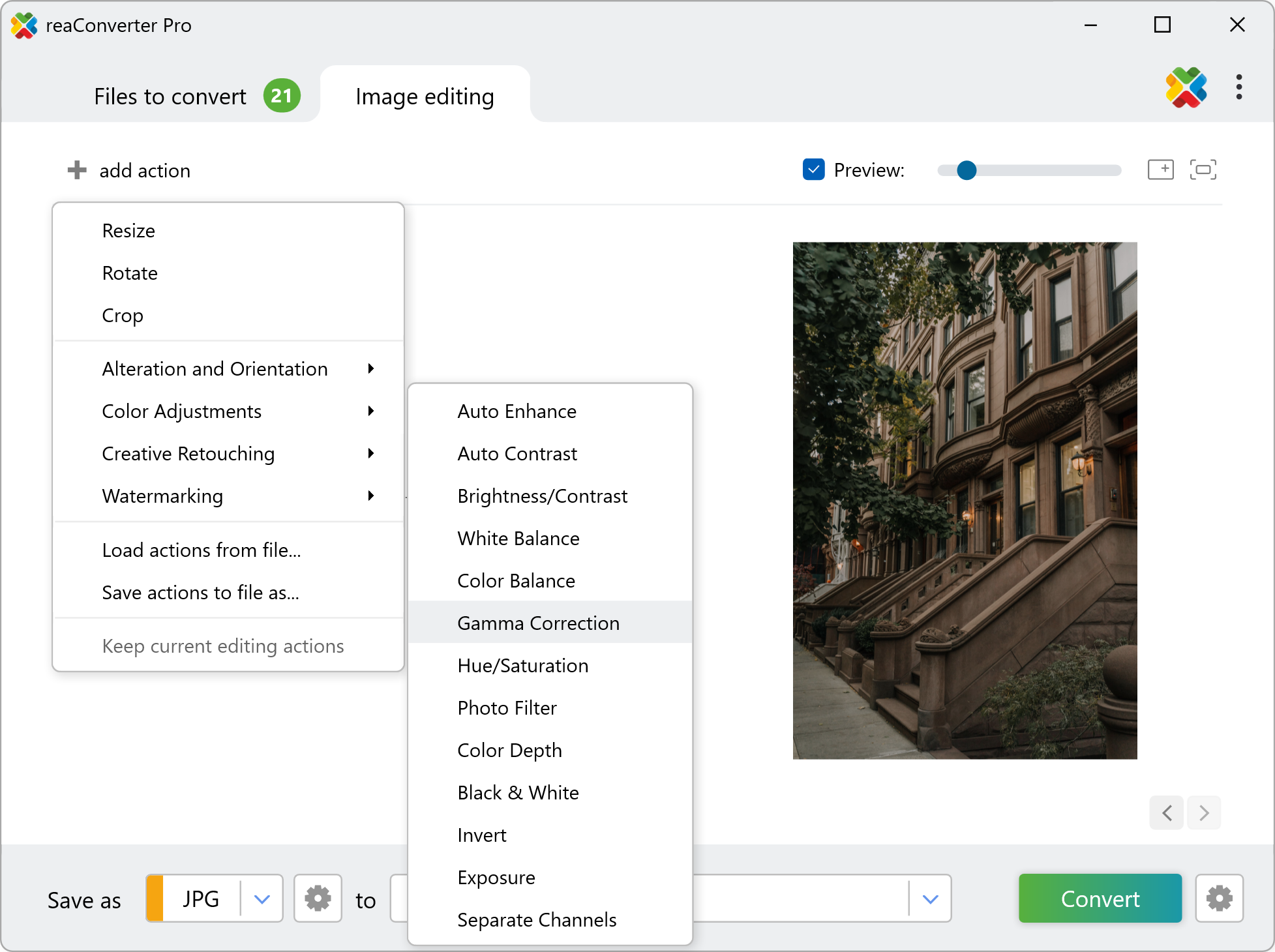
Go to the Image editing tab, click on Add action, and then Color Adjustments and Gamma Correction.
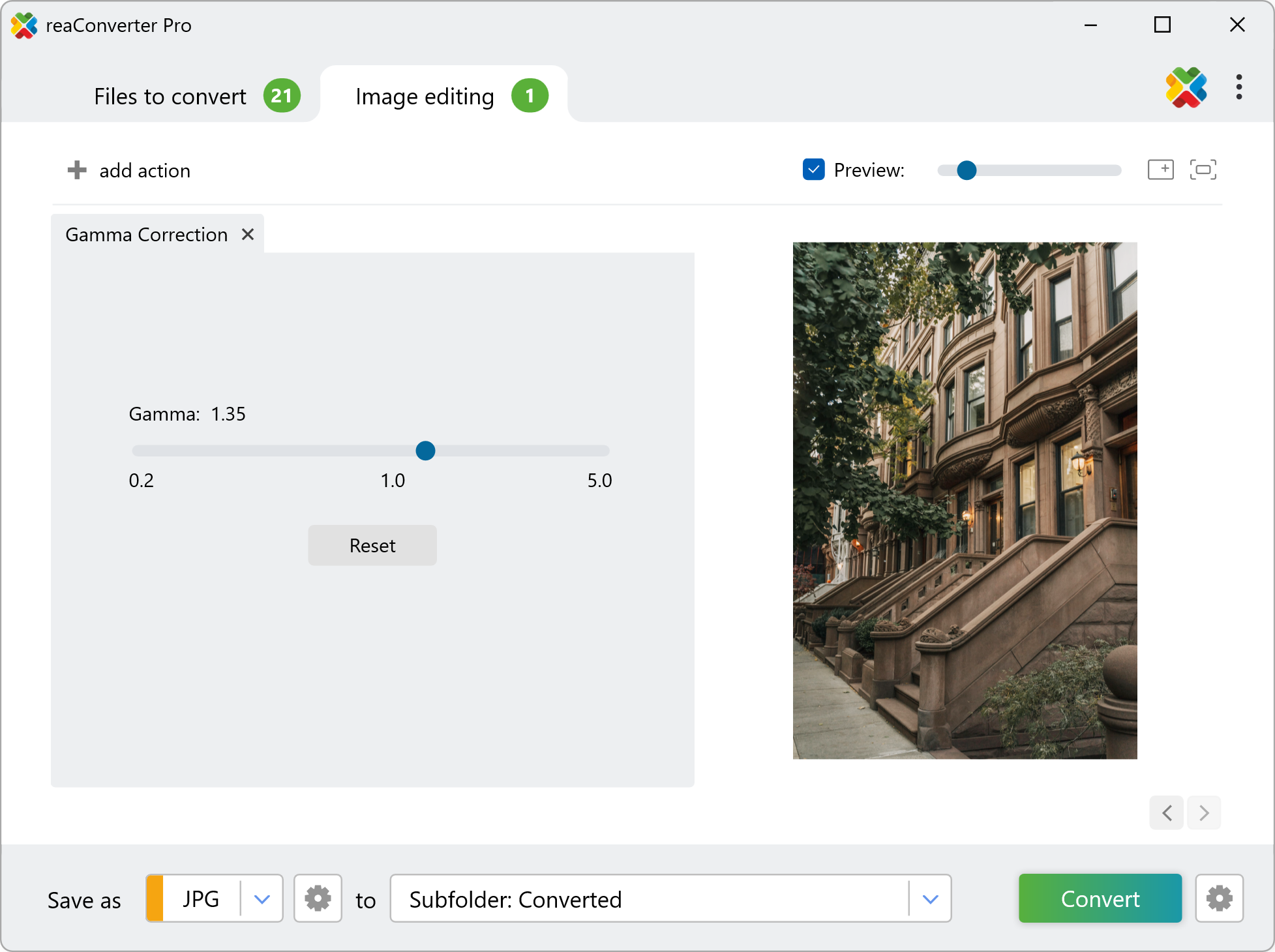
Here you can easily customize the Gamma values in your image, while checking the result in real time in the Preview section.
3. Save the Result
Review the Saving options you have and decide on the location of your corrected images. Before completing the operation, decide if you want to preserve or change the format of your images.
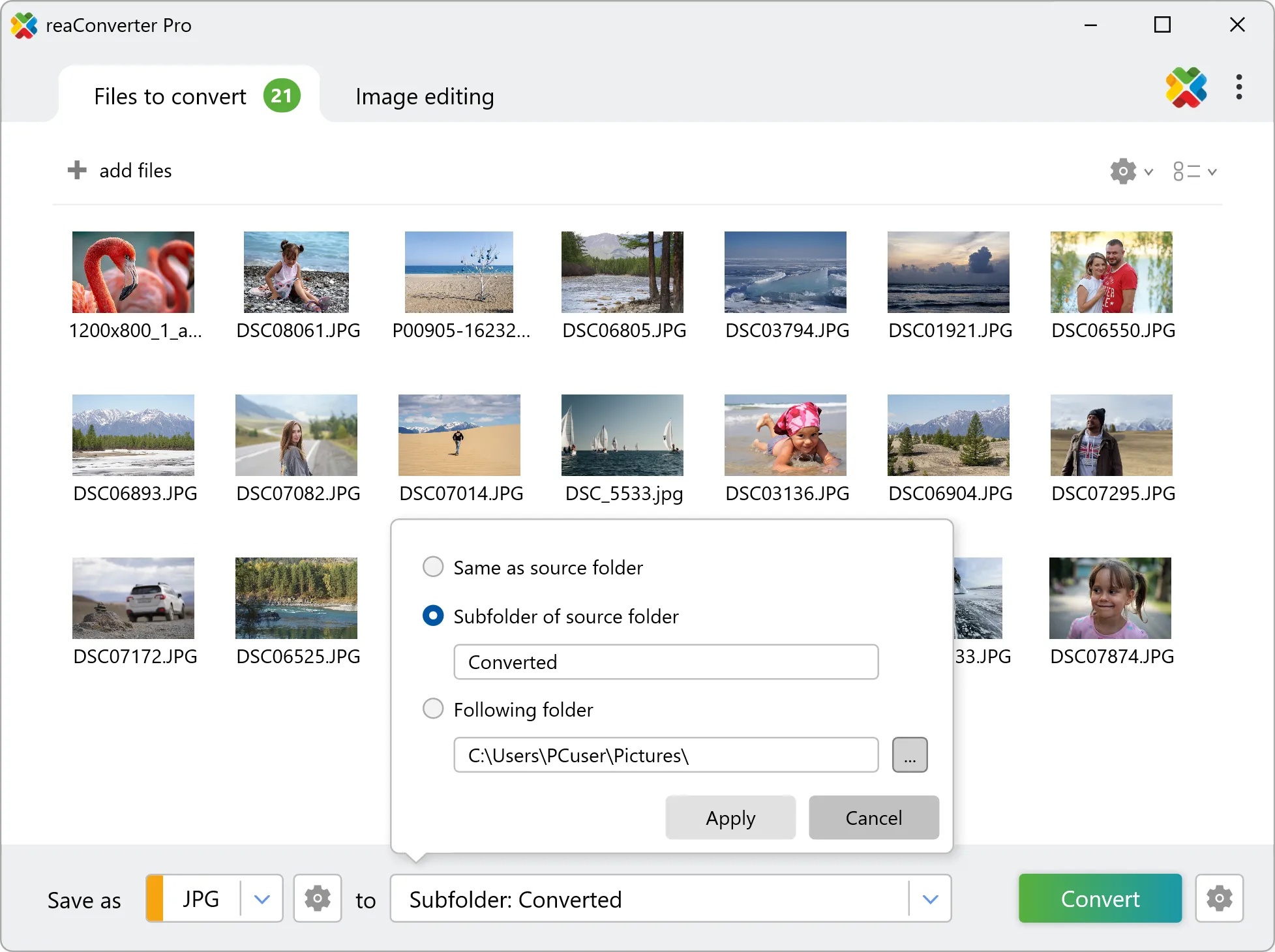
Finally, click the Convert button and your new images will be available in a few seconds.
Watch How It Works
Gamma correction on your PC
The fast and easy way to apply gamma correction on your PC is to use reaConverter. The software runs completely offline, keeping your files safe and private.
Command line
Gamma correction with command-line tool
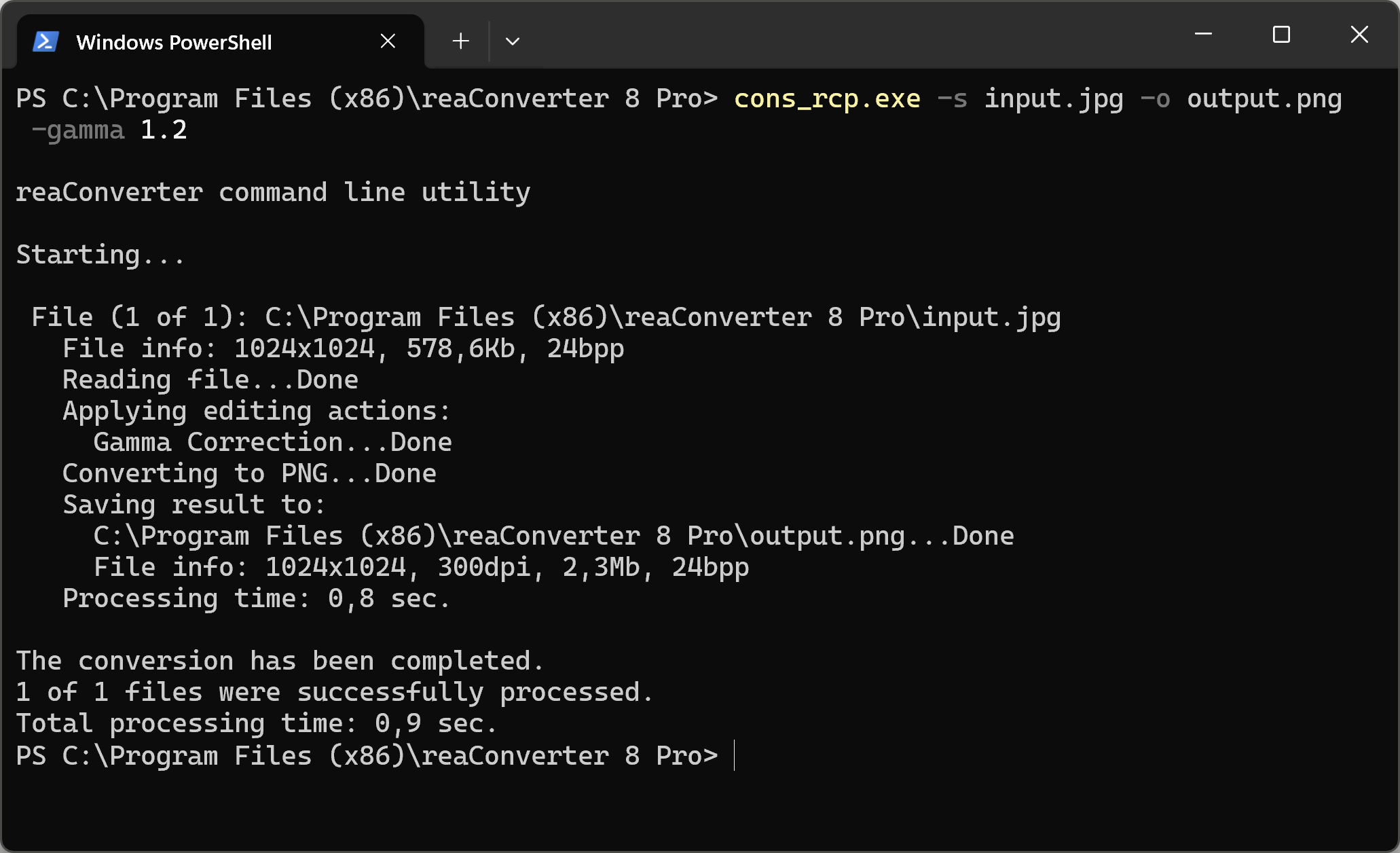
You can also apply gamma correction using command-line interface, either manually or through automated scripts. reaConverter Pro includes a command-line tool called cons_rcp.exe — an advanced feature designed for professional use, available exclusively in the Pro edition.
Gamma Correction example:
cons_rcp.exe -s "C:\Path_to\input_file.jpg" -o "C:\Path_to\output_file.jpg" -gamma 1.2
Manual
-gamma (performs gamma correction)
  Optional parameter:
	  1. Gamma (Syntax: 0.8, float from 0.2 to 5.0)
  Example:
    -gamma 1.2
You are welcome to contact our technical support when you have any questions about reaConverter.
Discover More
More than a converter
Advanced batch processing and editing for 800+ file formats, including CAD, medical imaging, and GIS. No cloud, no upload limits.
