Lens Correction
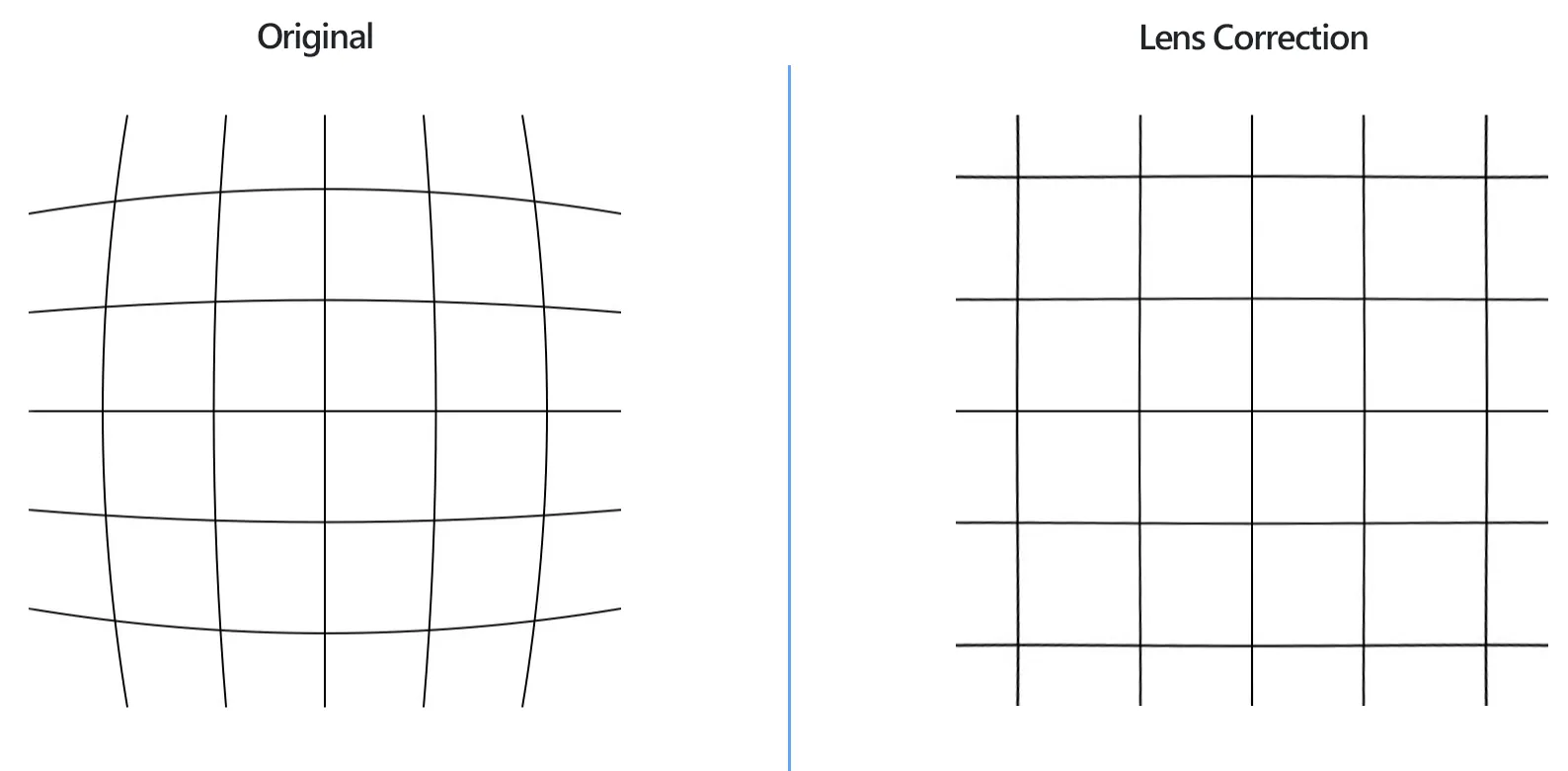
How to Apply Lens Correction to Multiple Photos at Once?
1. Open Images
Load one or more images you intend to correct by using the drag-and-drop tool or by adding them manually.
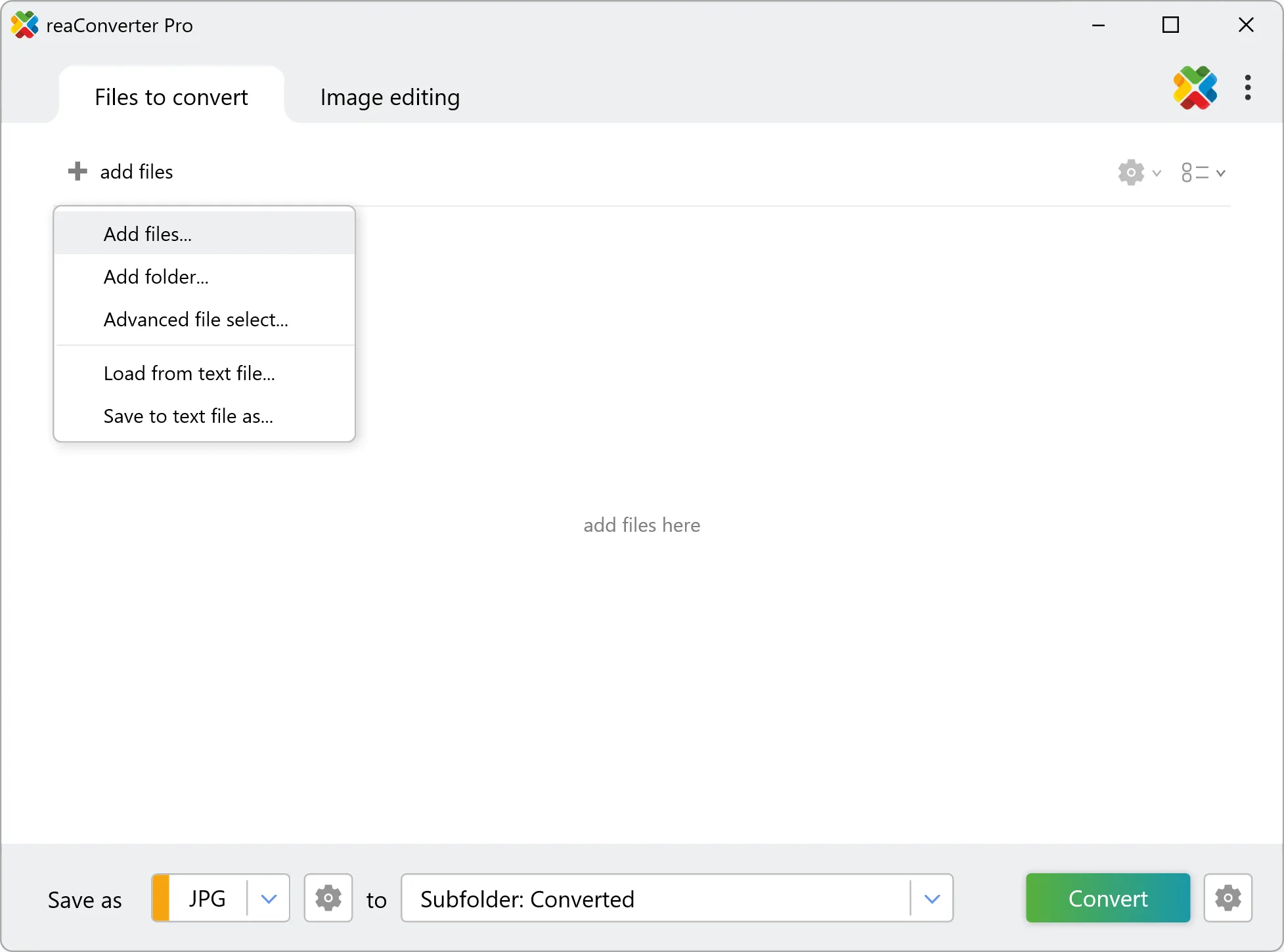
2. Add Lens Correction Action
Go to the Image editing tab and click Add action → Creative Retouching → Lens Correction
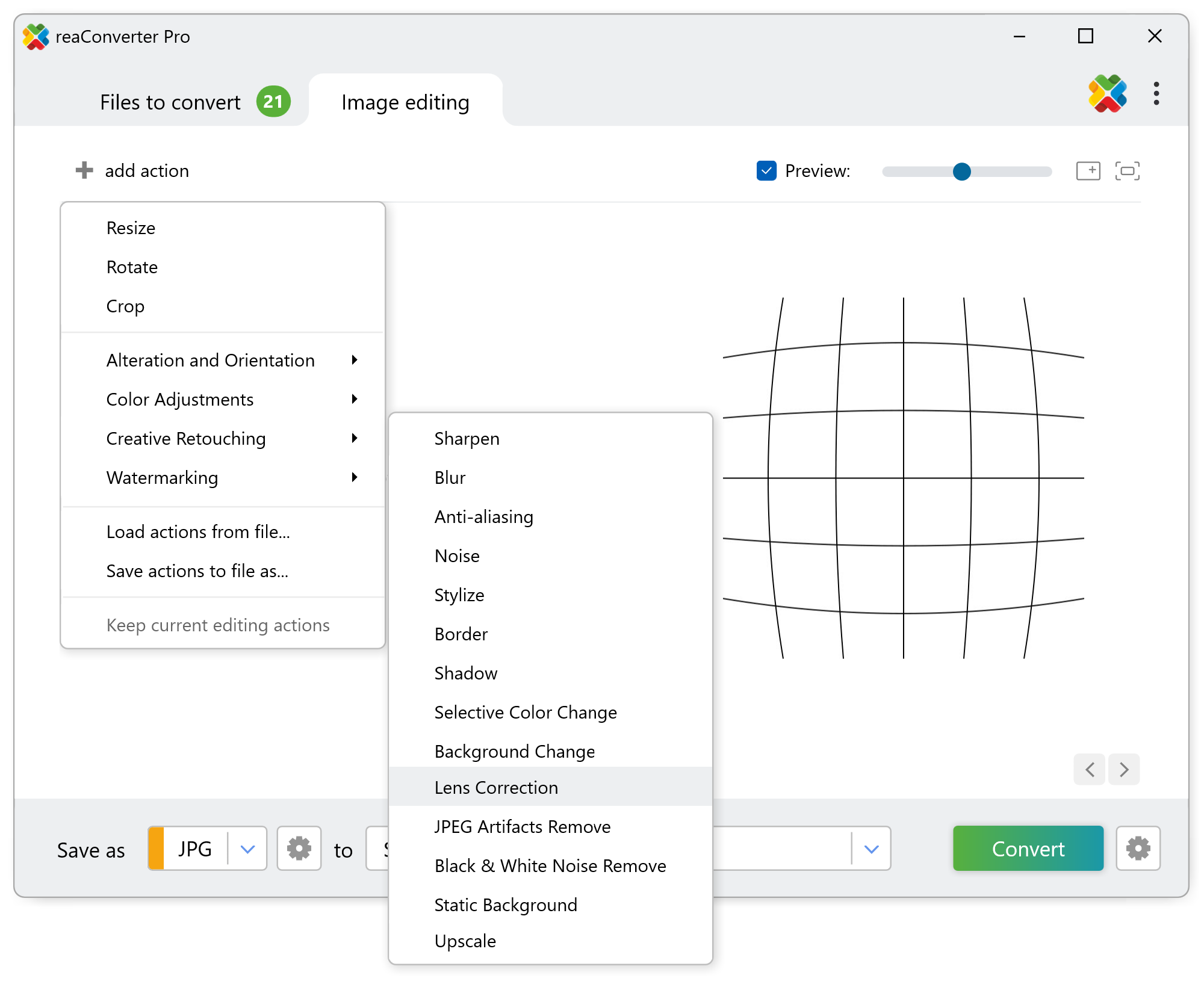
You will now be able to customize the intensity of the correction using a handy scroll bar. Make sure the Preview box is ticked, so that you can check the real-time effect of your editing in the right side of this window.
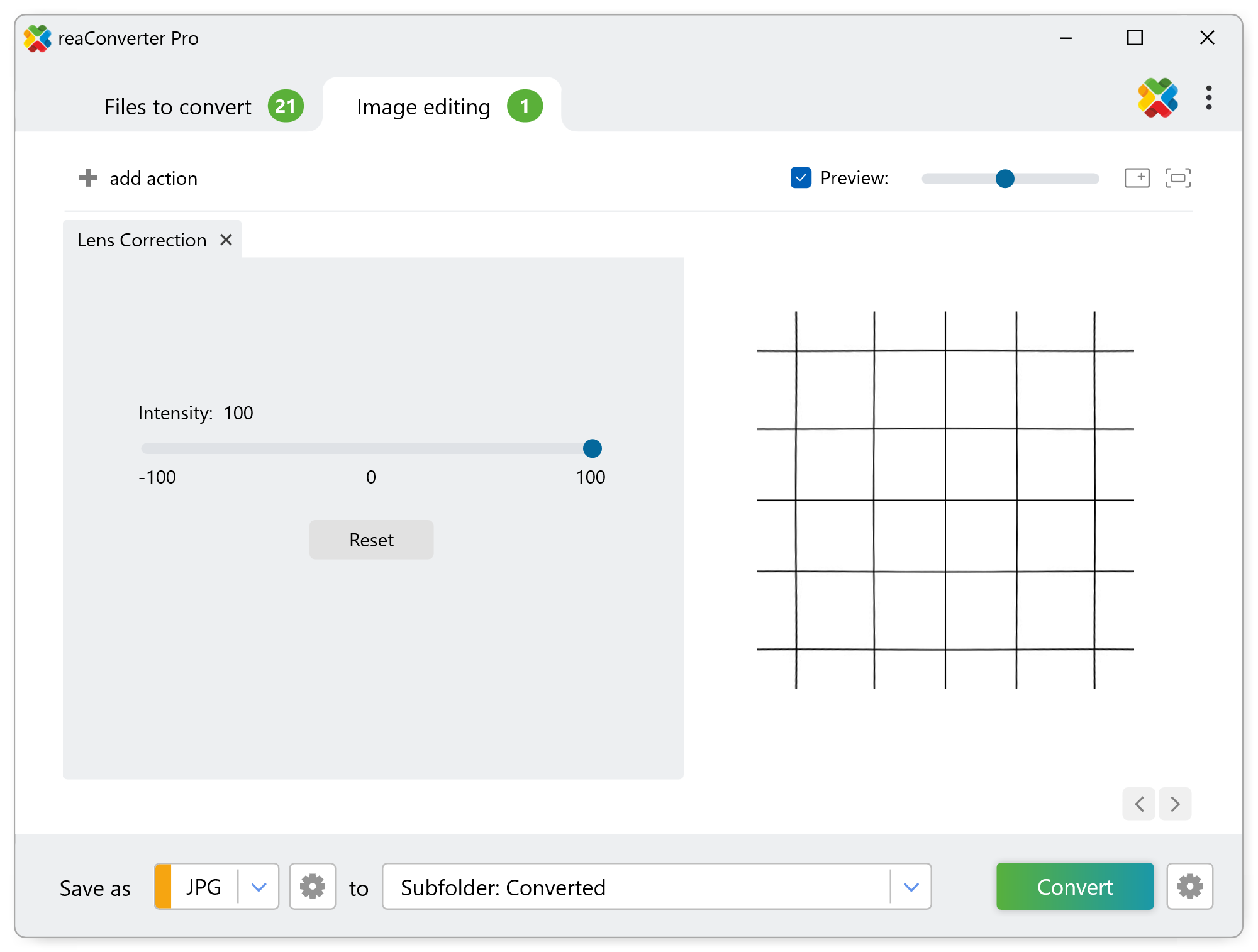
3. Save the Result
Choose a location for the newly edited images. Before starting the Lens correction process with reaConverter, don't forget this powerful software also supports conversion to a large number of image formats, including popular, as well as archaic and rare ones.
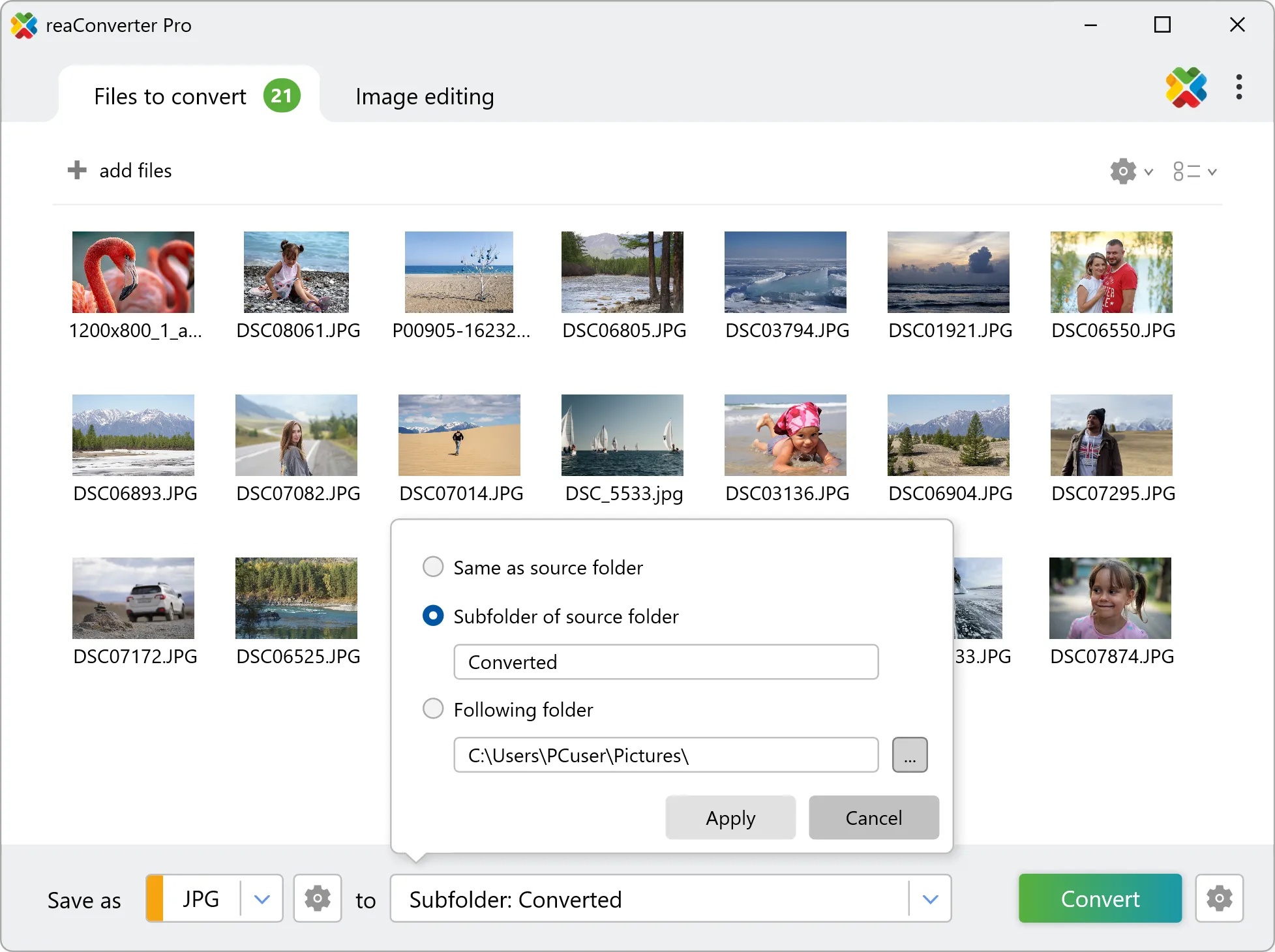
Next, press Convert and watch the dialogue box to see when your new images are ready.
Watch How It Works
Lens correction on your PC
The fast and easy way to process photos on your PC is to use reaConverter. The software operates completely offline, keeping your files safe and private.
Command line
Lens correction with command-line interface
You can also edit photos using command-line tool, either manually or through automated scripts. reaConverter Pro includes a command-line tool called cons_rcp.exe — an advanced feature designed for professional use, available exclusively in the Pro edition.
Lens Correction example:
cons_rcp.exe -s "C:\Path_to\input_file.jpg" -o "C:\Path_to\output_file.jpg" -lens_correction i-30
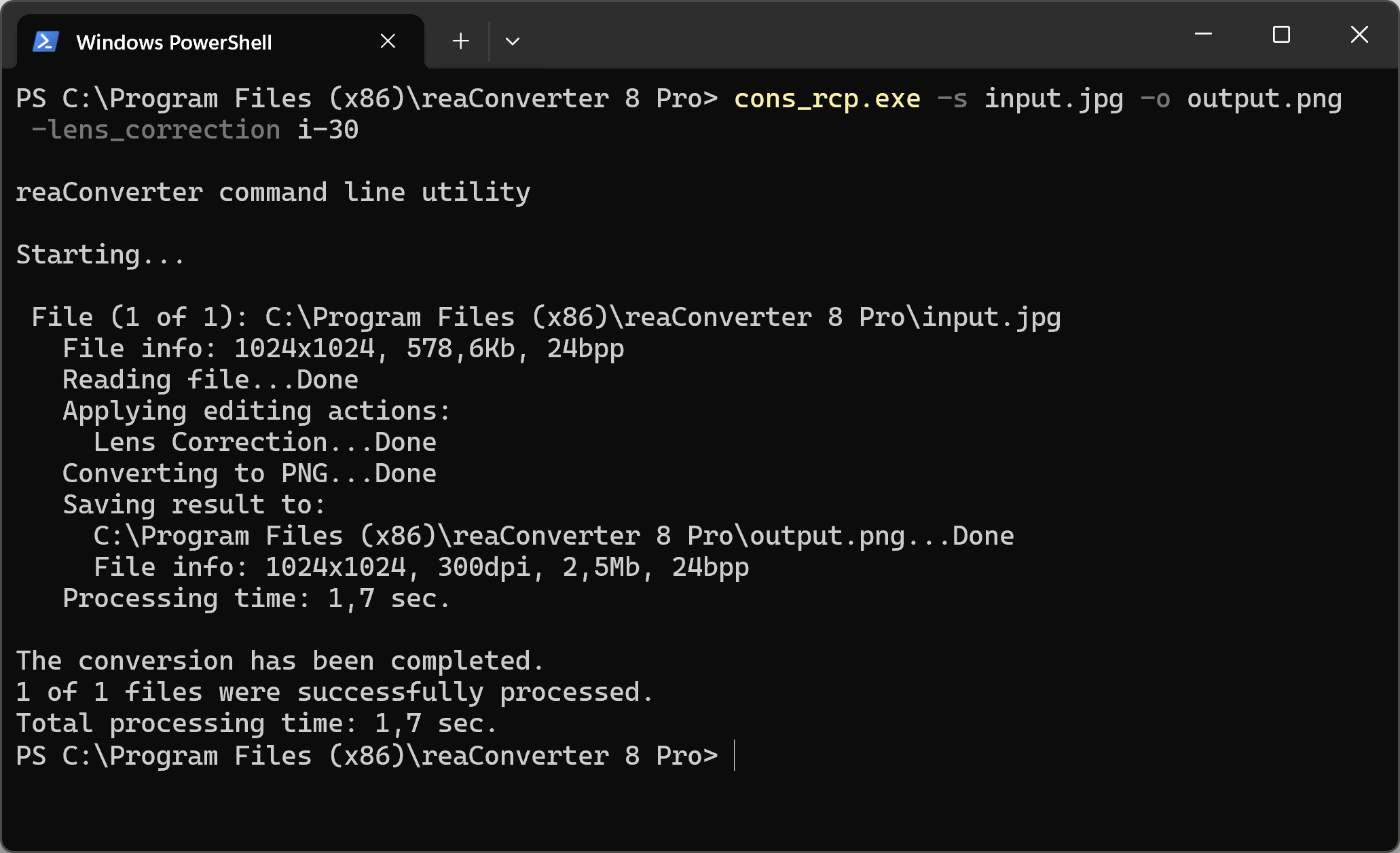
Manual
-lens_correction (perform lens correction)
  Optional parameter:
	  1. Intensity (Syntax: i20, integer from -100 to 100)
  Example:
    -lens_correction i-30
You are welcome to contact our technical support when you have any questions about reaConverter.
Discover More
More than a converter
Advanced batch processing and editing for 800+ file formats, including CAD, medical imaging, and GIS. No cloud, no upload limits.
