


How to Convert Multiple .cr2 Images to .stl?
1. Download and Install reaConverter
reaConverter is a standalone Windows app — download, install, and start converting CR2 files in under two minutes. Need edits? Resize, rotate, or add watermarks during conversion.

2. Load your CR2 files
Add CR2 camera files to reaConverter. Import folders of RAW photos and process them all with consistent settings.
Use drag-and-drop, folder browser, or right-click conversion from Explorer.

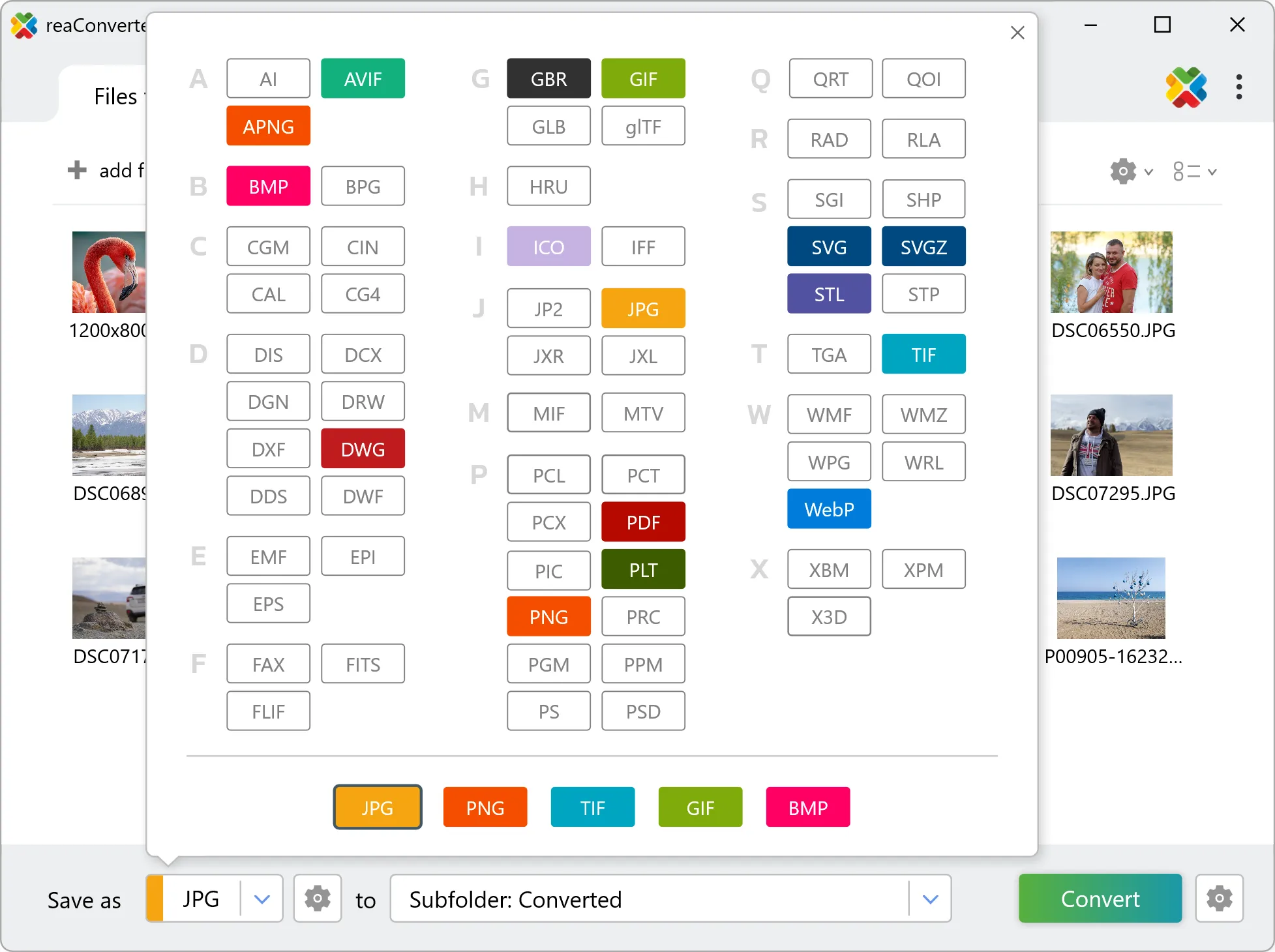
3. Select STL as output format
Select STL from the format list. Fine-tune color space, compression, and quality before converting your RAW photos.
4. Start CR2 to STL conversion
Click Convert to start the batch. reaConverter processes files quickly and shows you the status of each one.

Once done, reaConverter shows a summary. Click 'Show converted files' to jump straight to your STL output.