

How to Convert Multiple .exr Images to .ai?
1. Download and Install reaConverter
reaConverter installs quickly on any Windows PC. No dependencies, no bloatware — just a clean setup that's ready to use immediately. Need edits? Resize, rotate, or add watermarks during conversion.

2. Load your EXR files
Launch reaConverter and load the EXR files you want to convert. Add a few files or thousands, batch processing handles them all.
Drag-and-drop EXRs directly into reaConverter or use the folder browser to load entire directories.

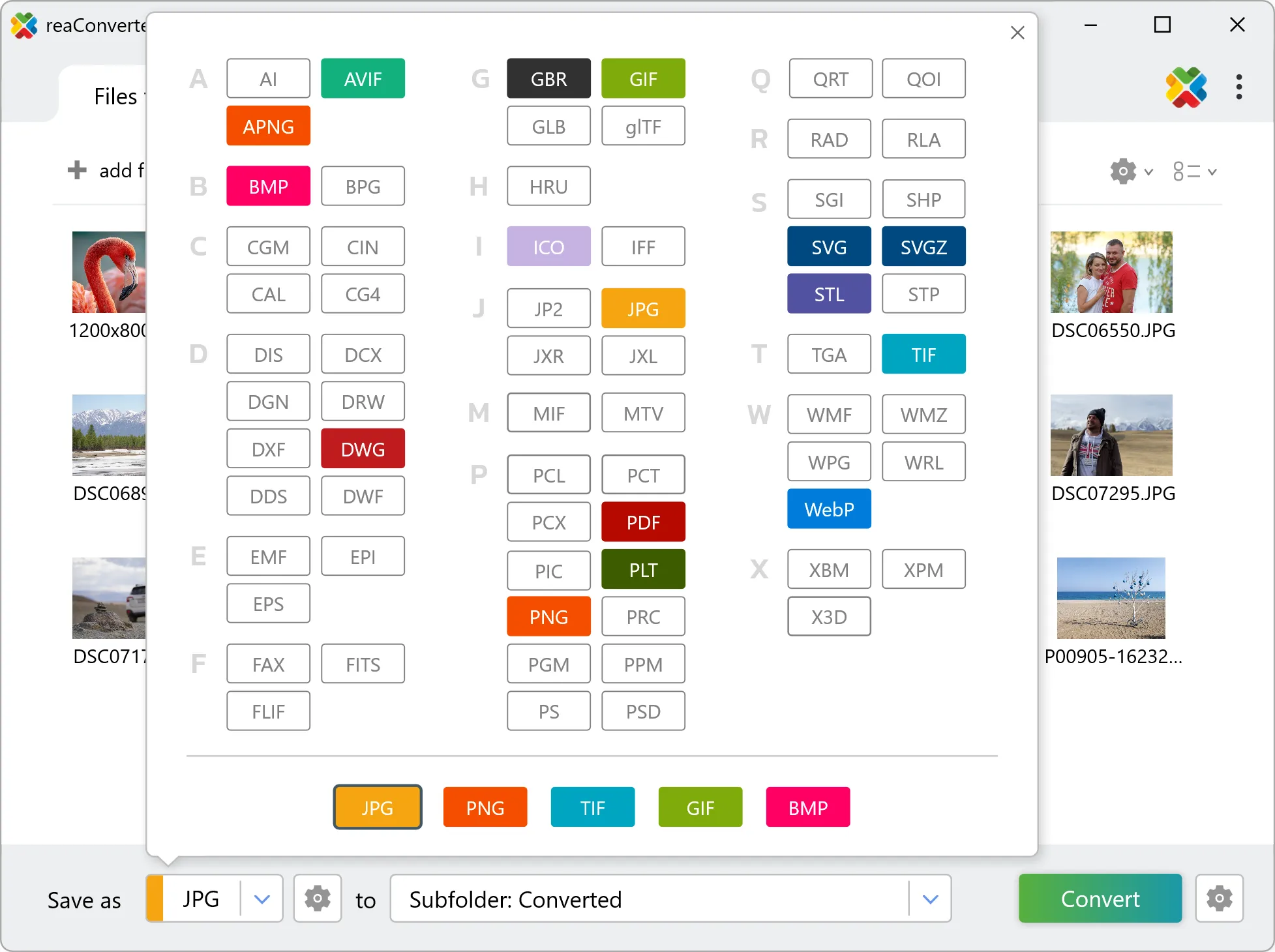
3. Select AI as output format
Select AI as the output format, then open Menu → Saving settings → Raster to vector conversion. Centerline suits scanned drawings, outline suits clipart and logos, and the precision value controls how closely the paths follow the original.
4. Start EXR to AI conversion
Press Convert to begin processing. You can watch the progress or minimize and let it run in the background.

Your converted AI files will appear in the destination folder as soon as processing completes.