



How to Convert Multiple .fits Images to .hpg?
1. Download and Install reaConverter
First, grab reaConverter from the download button below. Installation is fast, and the software runs offline — no account or signup needed. You can also resize, crop, and adjust images during conversion.

2. Load your FITS files
Launch reaConverter and drop in your FITS files. The software queues everything for batch processing with consistent settings.
Add files by dragging them in, browsing folders, or using the right-click menu from Windows Explorer.

3. Select HPG as output format
Pick HPG as output format and choose the destination folder where you want to save new .hpg files.
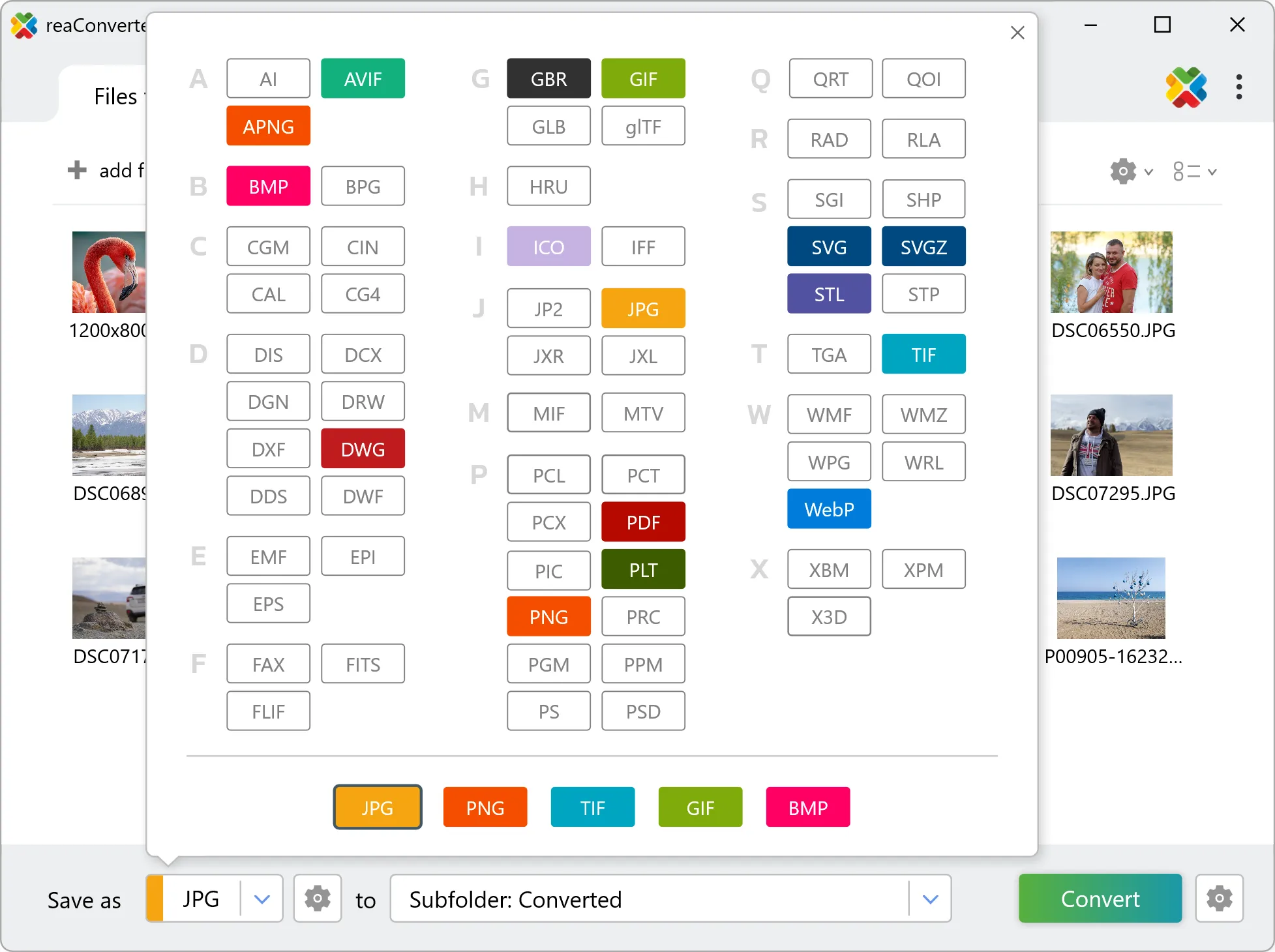
4. Start FITS to HPG conversion
Then simply press the Convert button and your conversion will begin in no time!

Once the conversion is complete, you can find your HPG files in the destination folder you selected.