
How to Convert Multiple JXR Images to GIF?
1. Download and Install reaConverter Lite
reaConverter Lite is quick to download, easy to install, and ready to launch in seconds. This lightweight, standalone software is highly efficient at handling a wide range of batch image conversions. Plus, it lets you apply essential image editing options — such as resizing, rotating, or adjusting quality — during the conversion process.

2. Load your JXR files
Open reaConverter and import your .jxr files. No file limits, no slowdowns. Add as many as you need.
Drag files into the window, use the Add Files button, or select entire folders.

3. Select GIF as output format
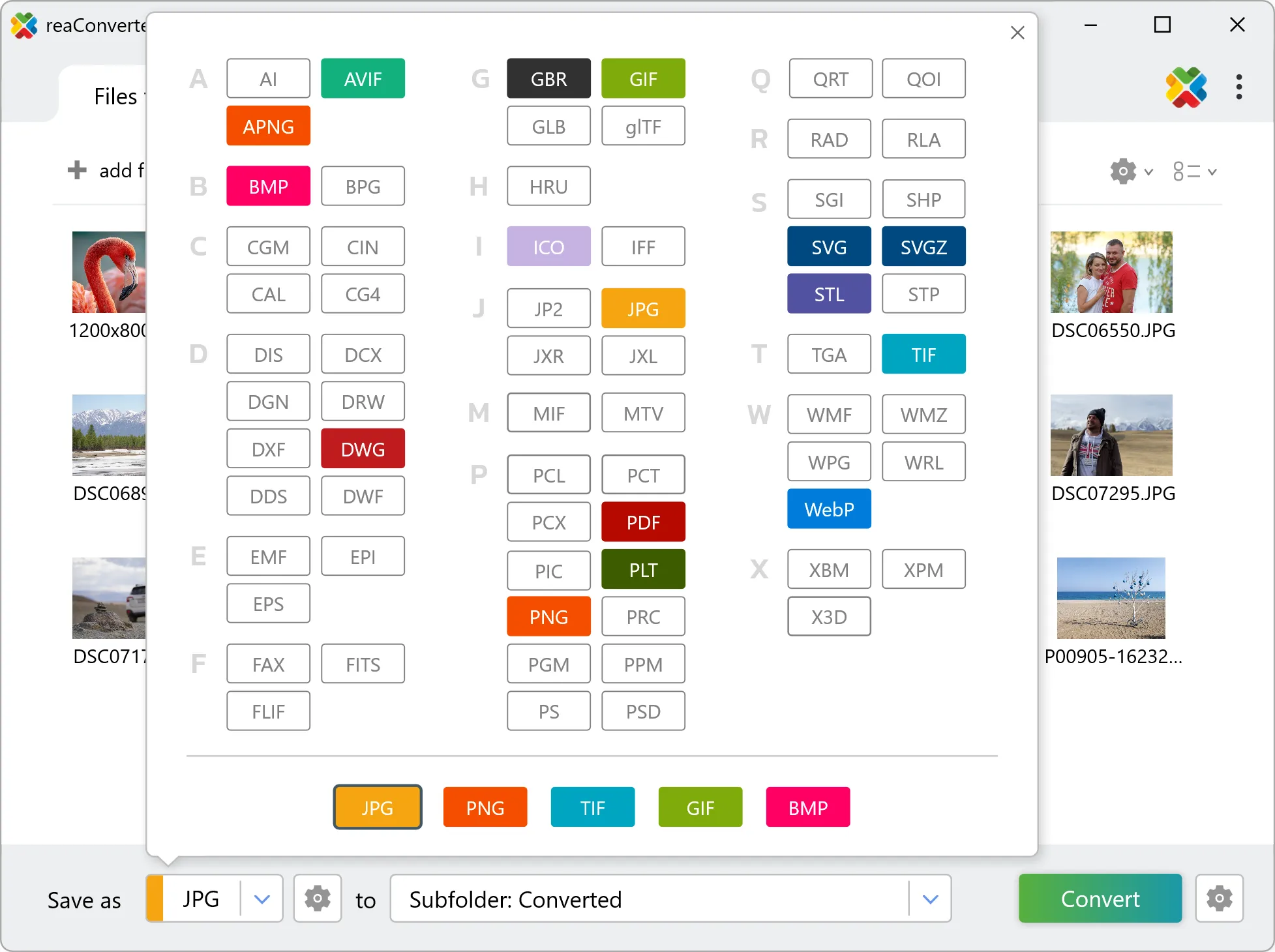
Select GIF as target format and pick where to save results. You can keep default settings or fine-tune the output.
4. Start JXR to GIF conversion
Hit Convert to process your files. The log window shows progress, timing, and status for every file.

Conversion complete? Your GIF files are saved to the destination folder, ready to use.
What changes when you convert JXR to GIF
JXR carries 16 bits per channel and GIF carries 8, so tonal steps get coarser during conversion. It shows up first in smooth gradients such as skies. If the result will be edited further, move to an 8-bit format only at the very end. GIF is lossless, so nothing further is discarded during conversion. What it cannot do is restore detail that JXR compression already removed, and the output file will usually be considerably larger.