Convert DDS to STEP

Convert DDS 3D models to STEP without expensive CAD software. reaConverter handles batch conversion offline with consistent output.

Looking to change DDS files to STEP format? reaConverter makes it simple — add your files, select output format, and convert entire folders in one click. Runs entirely on your hardware for maximum speed, so you never wait for uploads or server queues. Handles 3D models independently with no CAD software required.

DDSSTEP

How to Convert Multiple DDS Images to STEP?

1. Download and Install reaConverter

First, grab reaConverter from the download button below. Installation is fast, and the software runs offline — no account or signup needed. Apply image edits like resize, crop, or color adjustment while converting.

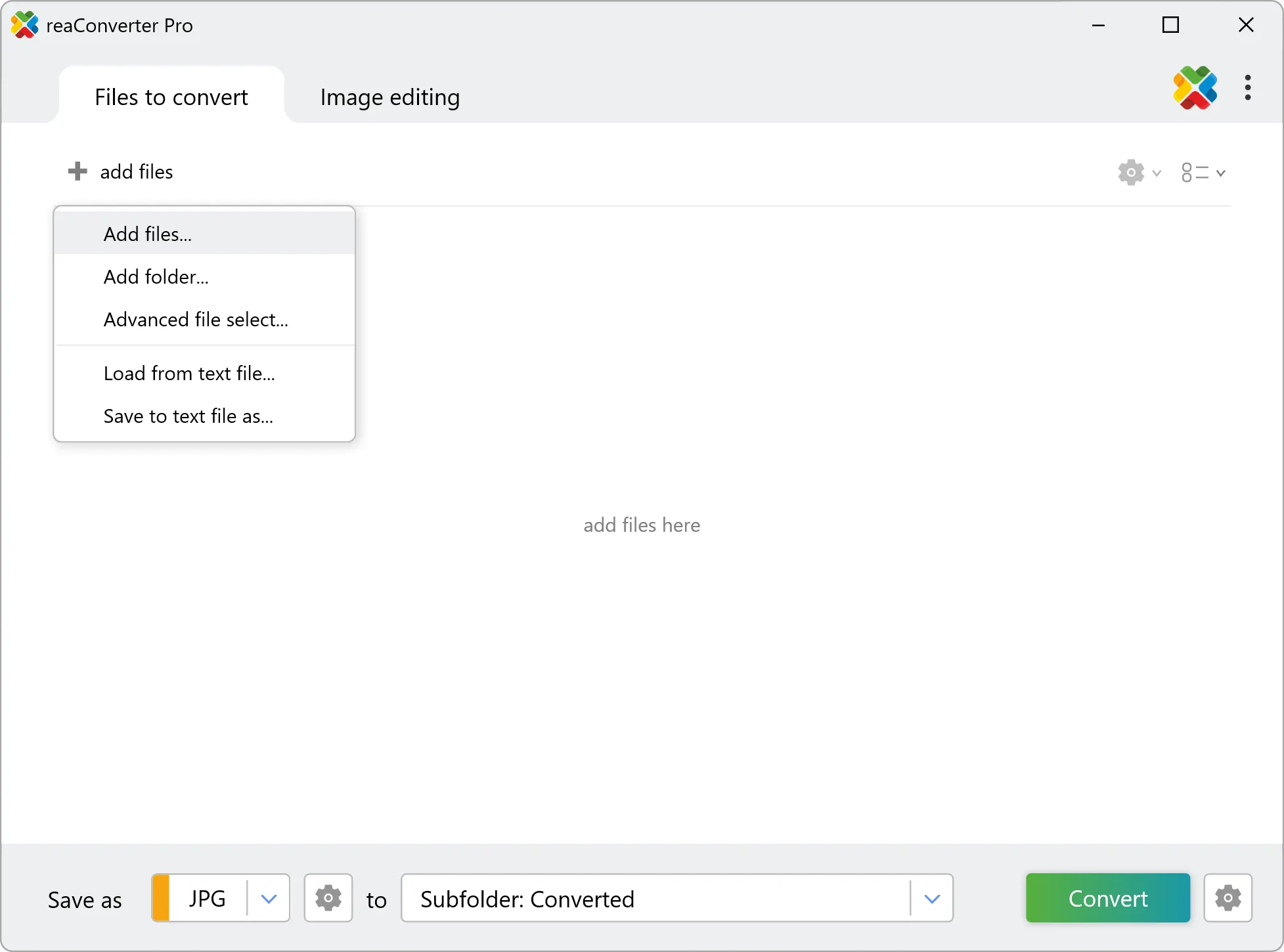
2. Load your DDS files

Start reaConverter and add your .dds files. The software processes everything locally, so your files never leave your computer.

Use drag-and-drop, folder browser, or right-click conversion from Explorer.

Load your DDS files into reaConverter

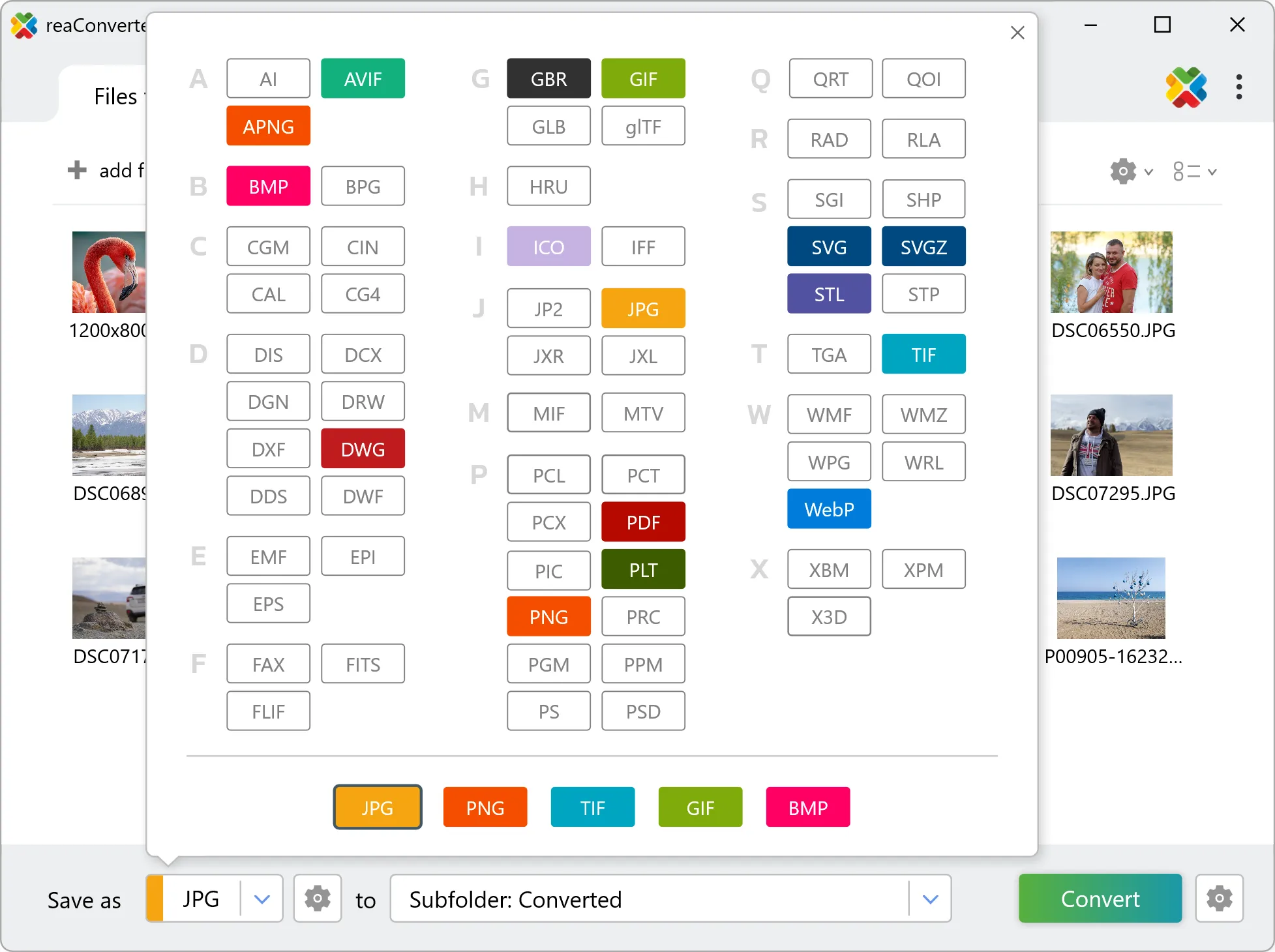
3. Select STEP as output format

Select STEP from 700+ supported output formats. Choose your destination folder and adjust settings to match your needs.

Select STEP as output format

4. Start DDS to STEP conversion

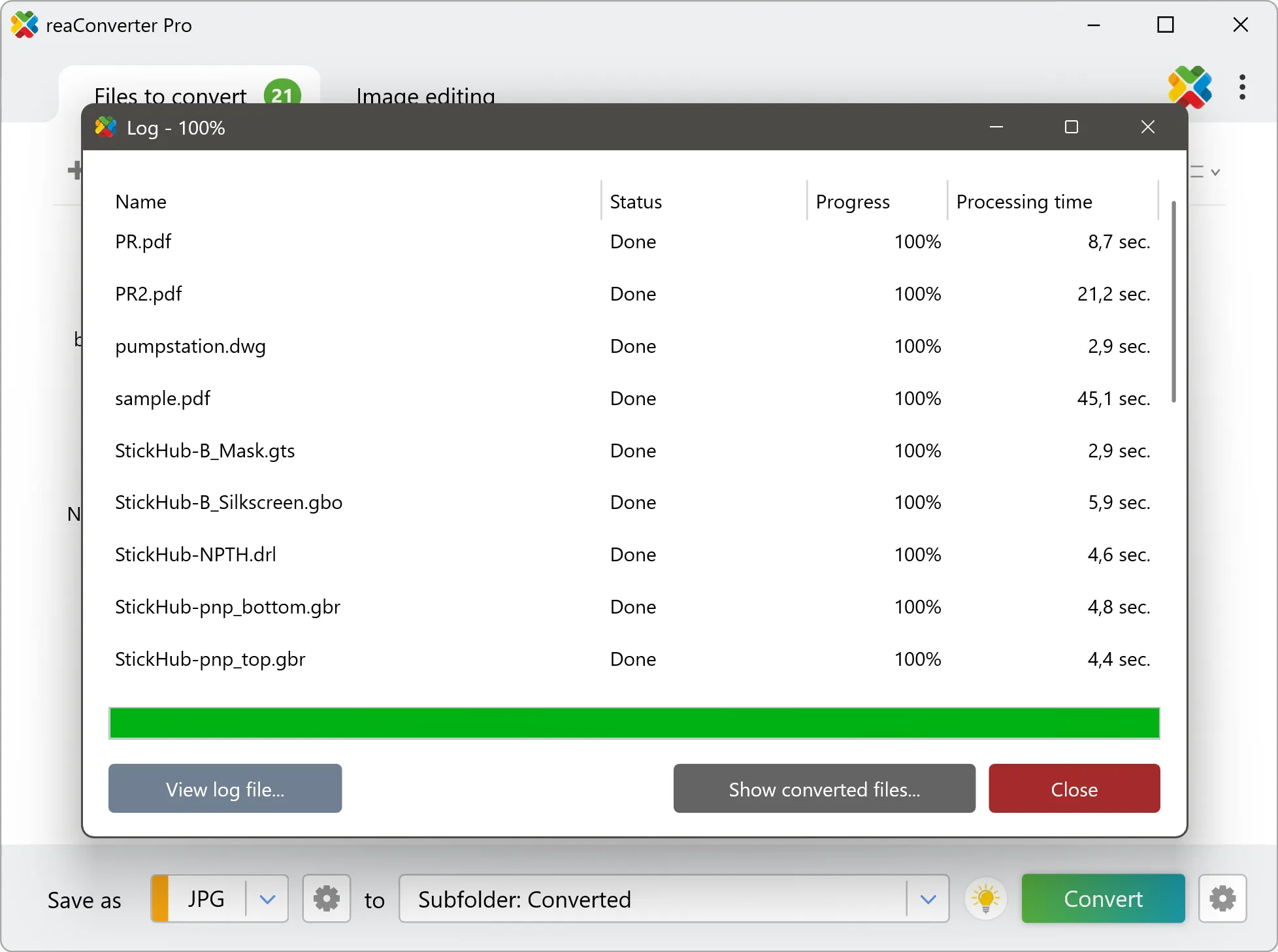
Click Convert to start the batch. reaConverter processes files quickly and shows you the status of each one.

Start Conversion

Once done, reaConverter shows a summary. Click 'Show converted files' to jump straight to your STEP output.

DDS to STEP Converter

reaConverter offers the fastest, simplest solution for converting your DDS files into STEP in seconds - all images processed on your PC for maximum privacy and speed.

Do more with your images

Converting DDS images for use in a larger project? With reaConverter, you can convert, edit, and enhance your images in one streamlined process.

Our range of editing options includes such image processing actions as Resize, Rotate, Crop, Color Replace, Watermarks and more. Adjust actions include RGB, HLS, HSV, Brightness and Contrast. Auto-processing options are also available, such as auto-rotate and auto-crop.

Image editing

User Reviews

Average User Rating:
Last updated on April 21, 2026
"reaConverter made converting my STEP files to DXF a breeze! The batch processing feature saved me hours, handling hundreds of files flawlessly in minutes. Its offline mode ensured my CAD data stayed secure, and the intuitive interface was perfect for a non-techie like me. Highly recommend for anyone needing fast, reliable STEP file conversions!"
John S.
John S.
Satisfied Customer
"reaConverter has been a huge time-saver for our team. We regularly work with CAD models in STEP format, and converting them to images or other file types used to be a hassle. With reaConverter, the process is fast, accurate, and incredibly easy to set up. The batch conversion feature is especially useful when handling large projects. Highly recommended for anyone dealing with STEP files on a regular basis."
Mark T.
Mark T.
Engineer
"I needed to convert a batch of STEP files for a client presentation and ReaConverter made it simple. The interface is intuitive, letting me drag, drop, and choose my output format (I used STL) in seconds. The batch processing saved me hours of work. Highly recommended for its reliability and speed."
Alex J.
Alex J.
CAD Designer
"The step-by-step video makes conversion foolproof. I'd recommend this to my grandma - it's that well-explained!"
DeShawn M. Thompson
DeShawn M. Thompson
Happy User
"I'm really impressed with this software - it converts files between formats incredibly fast!"
Lin Zhang
Lin Zhang
Happy User
"I firmly believe working with JPEG — the universal format supported by all devices and apps—is the wisest choice. reaConverter handles these conversions flawlessly."
Ava Thomas
Ava Thomas
Happy User

DDS to STEP Conversion: FAQ

Can reaConverter convert DDS to STEP?

Yes! reaConverter instantly converts .dds to .step with perfect quality preservation. With its batch processing feature, you can convert multiple files at once in just a few clicks. You can even convert images directly from Windows Explorer using the right-click menu — fast and convenient.

What is reaConverter used for?

reaConverter is a software program used for converting images and other types of files from one format to another. It supports a wide range of file formats and allows users to convert multiple files at once, making it a valuable tool for graphic designers, photographers, and other professionals who work with digital images. reaConverter also includes features for resizing, cropping, and editing images, along with batch processing capabilities that help automate repetitive tasks.

Can I convert DDS to STEP online?

If you only need to convert a few DDS files to STEP format, feel free to try our free online free online DDS to STEP converter — perfect for small batches with no installation needed!

How can I turn DDS files into STEP on my computer?

The best way to change DDSs to STEPs on your PC is to install a quality piece of software, such as reaConverter. This software is extremely efficient in managing a wide range of batch files conversions, including conversion from DDS to STEP.

How can I automate DDS to STEP files conversion?

reaConverter supports all the most useful automation features such as right-click сonversion and Watch Folders for the most efficient automated files conversion in any software of this type.

Is there a way to convert DDS files to STEP using the command prompt?

reaConverter provides full access to all its features via Windows command line, including a high-performance command-line dds to step converter for batch processing.

What else can I do with reaConverter?

Convert CAD formatsSet picture bit depthSet file dateChange format settingsSet new DPI

Find out more

Get advanced software for file conversion, processing, and editing, giving you complete, precise control over your work.
reaConverter software